Page Navigation
How to Add, Update and Delete GHBY Ebooks
This document explains how the Ebooks module allows administrators to manage digital ebook content displayed on the platform.
Using this module, users can create new ebooks, upload and manage multiple images, configure SEO details, update existing ebooks, and permanently delete ebooks when they are no longer required.
Overview
By following this document you will be able to:
- Add a new Ebook with images and SEO details
- Upload and manage multiple Ebook images
- Edit Ebook information, images, and SEO metadata
- Delete Ebooks from the backend dashboard
Add Ebook
Step 1: Open Ebooks Module
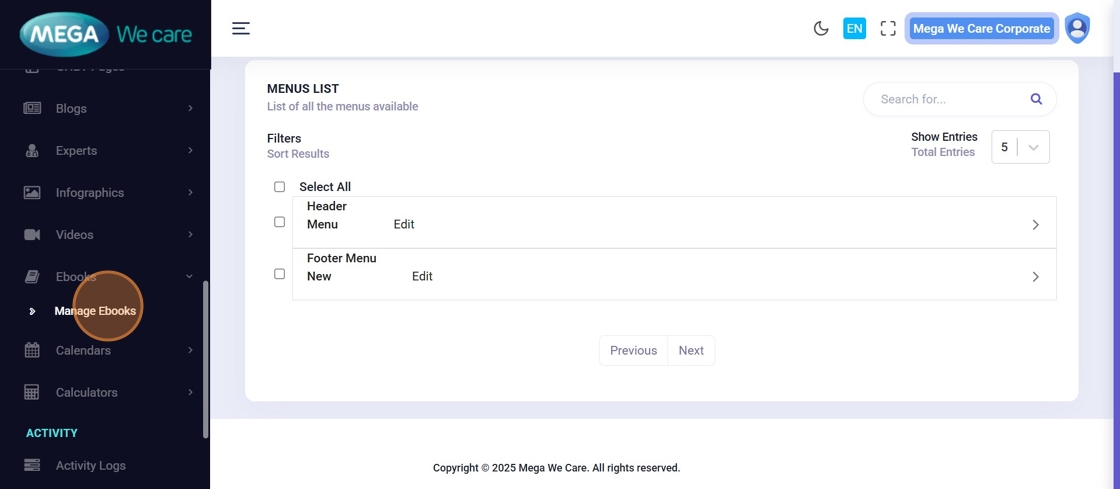
Navigate to the Admin Dashboard and click Manage Ebooks from the left sidebar.
Step 2: Click Add New Ebook
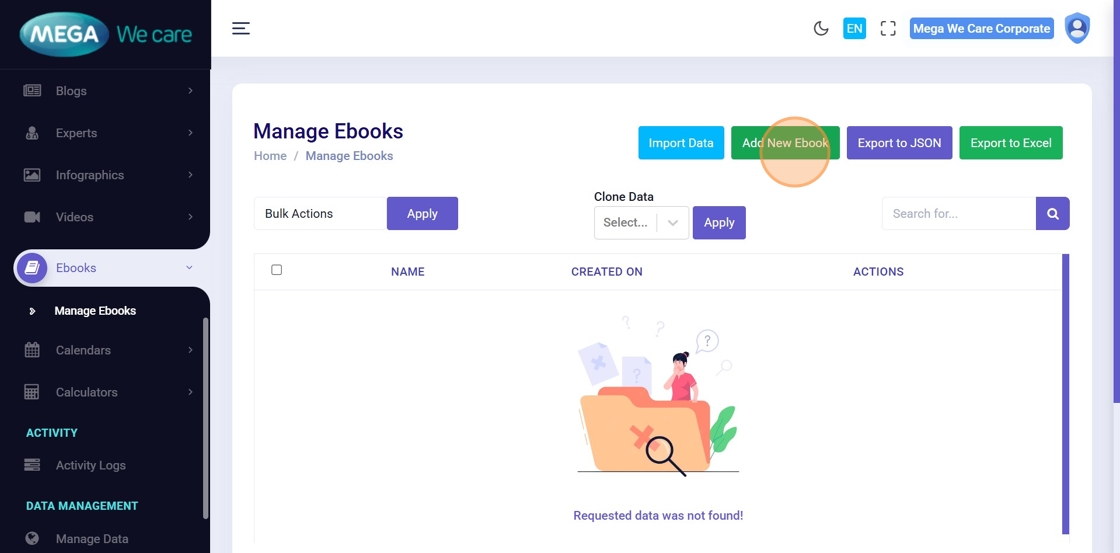
Click Add New Ebook to open the ebook creation form.
Step 3: Enter Ebook Title
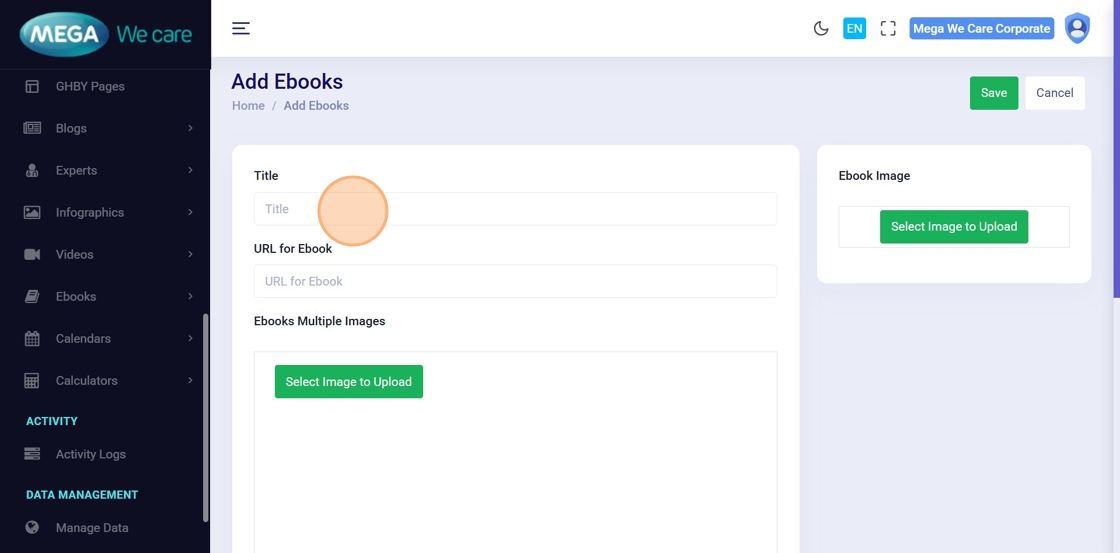
Click the Title field and enter the name of the ebook.
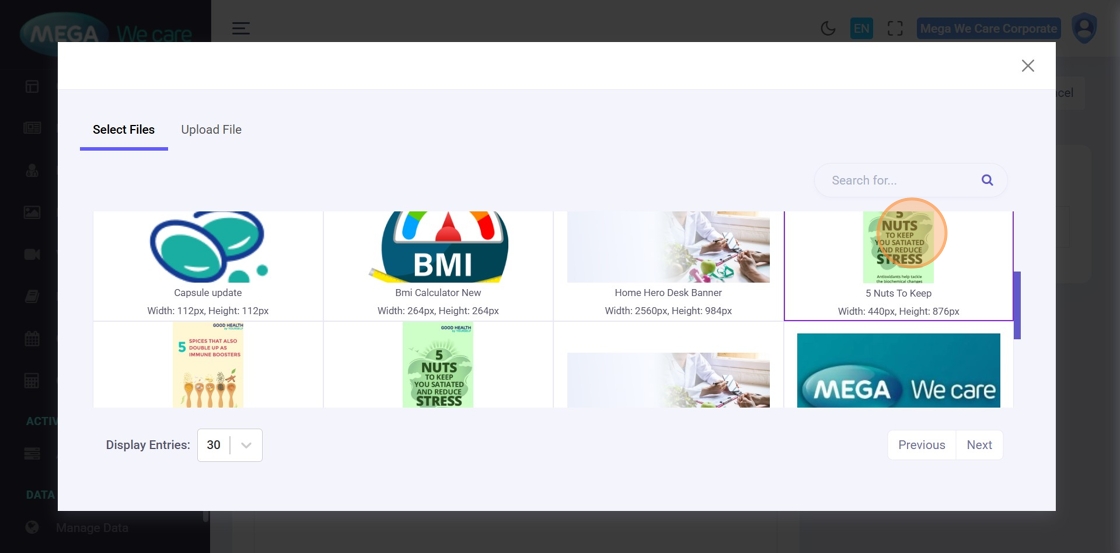
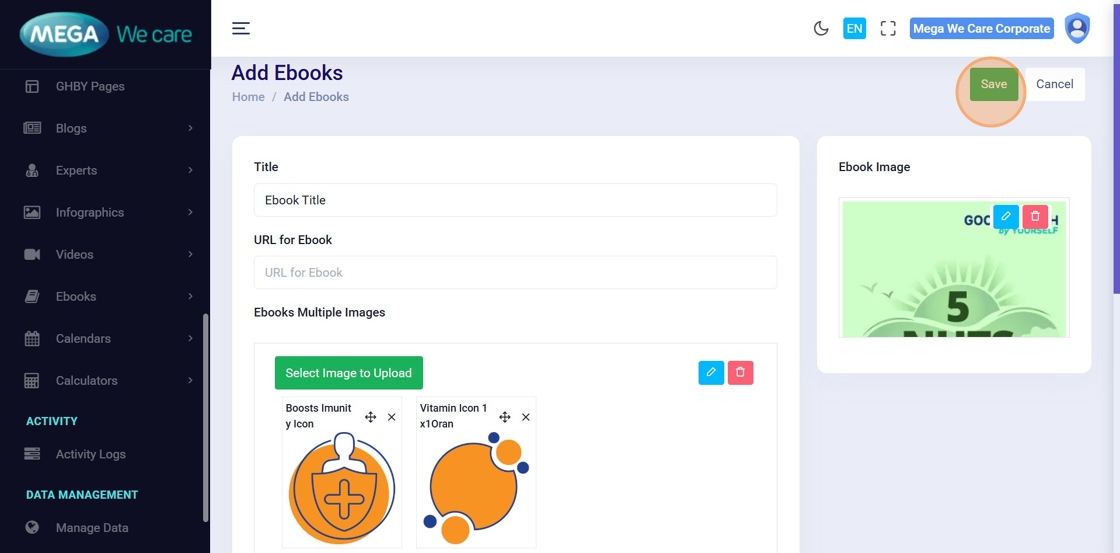
Step 4–5: Upload Main Ebook Image
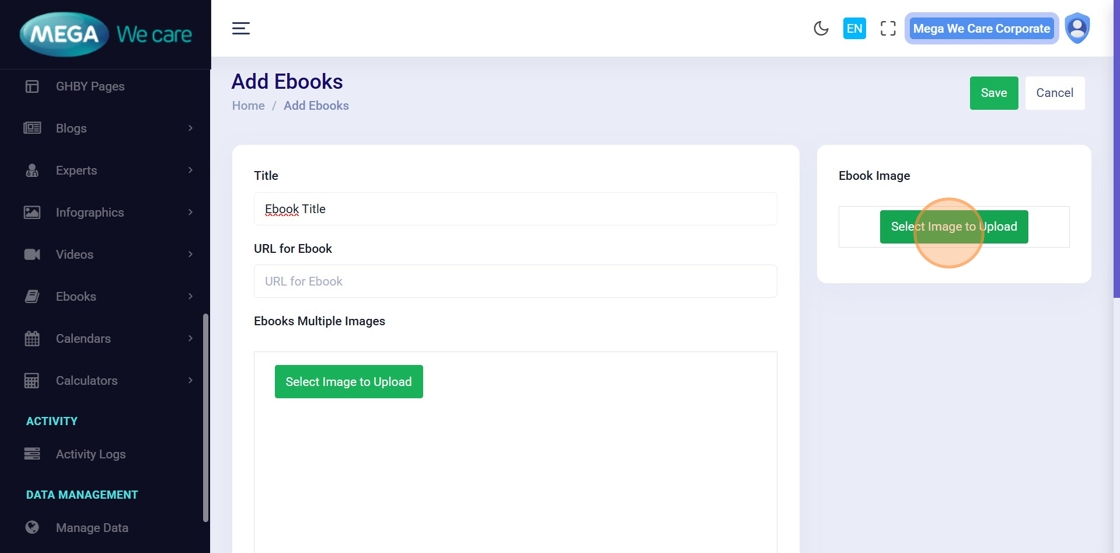
Click Select Image to Upload under Ebook Image and choose an image from the media library or upload a new one.
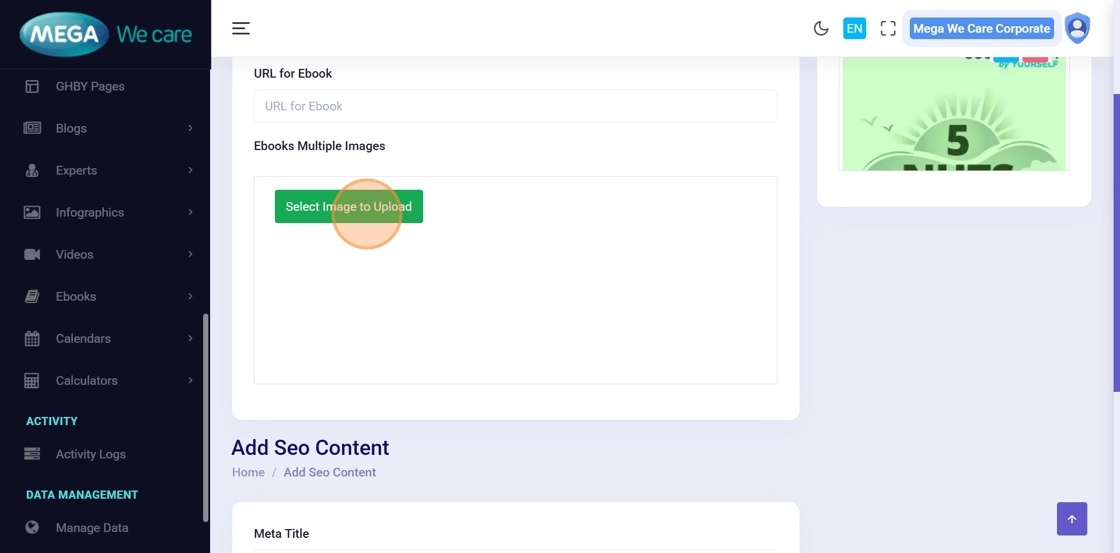
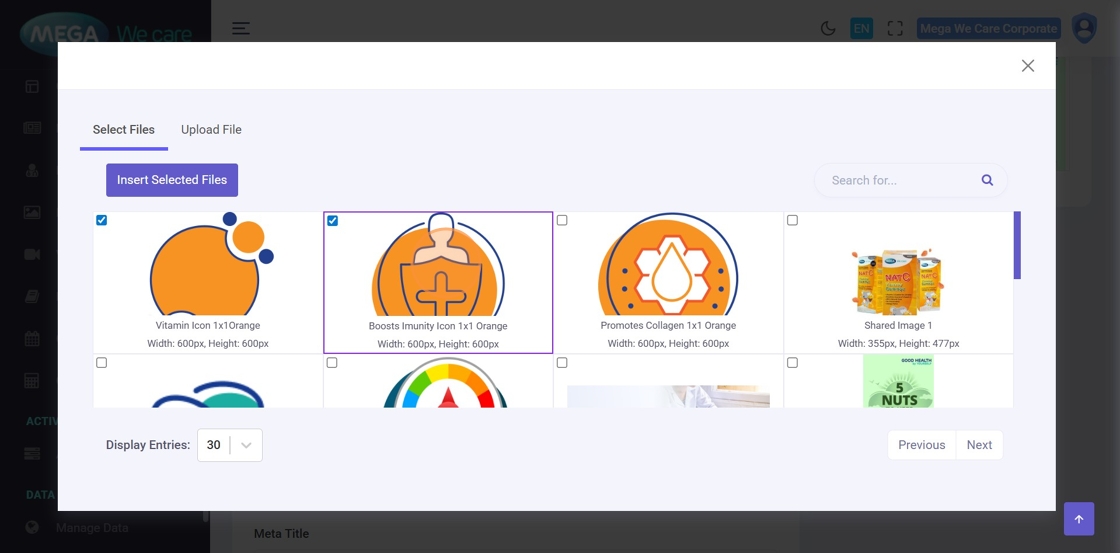
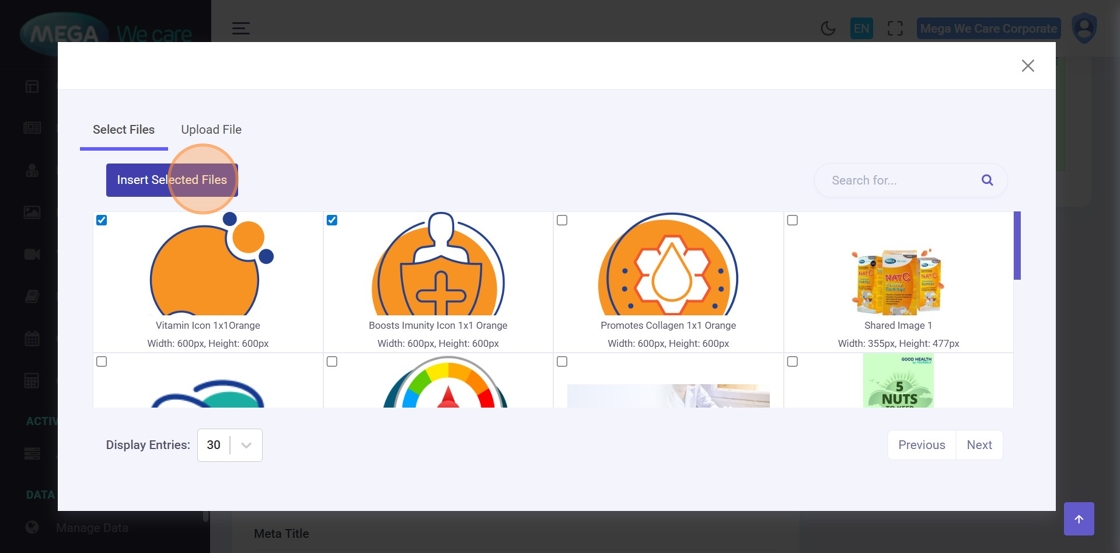
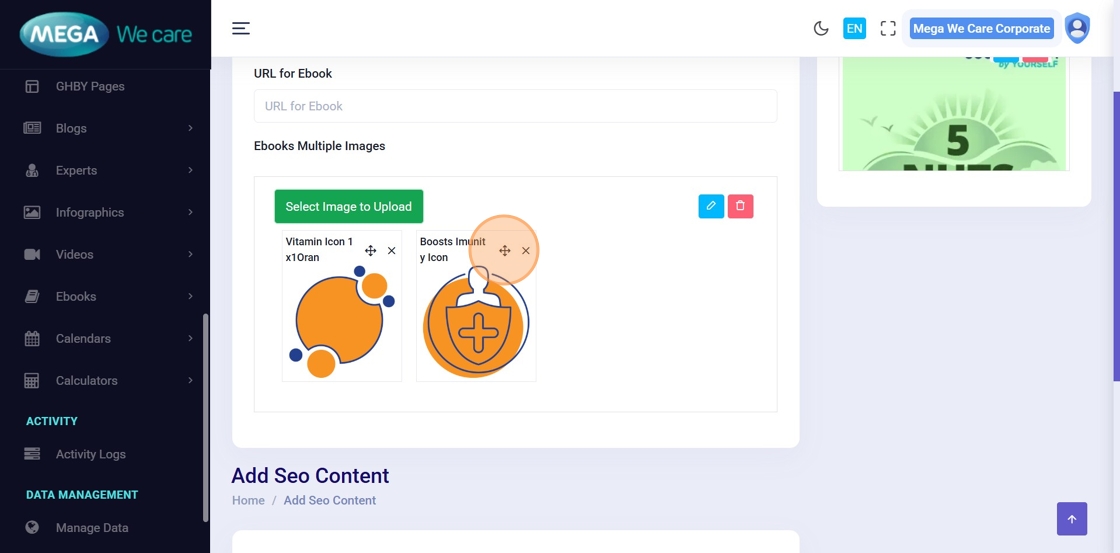
Step 6–9: Upload Multiple Ebook Images
Add additional images, confirm the selection, reorder images using drag and drop, or remove images if required.
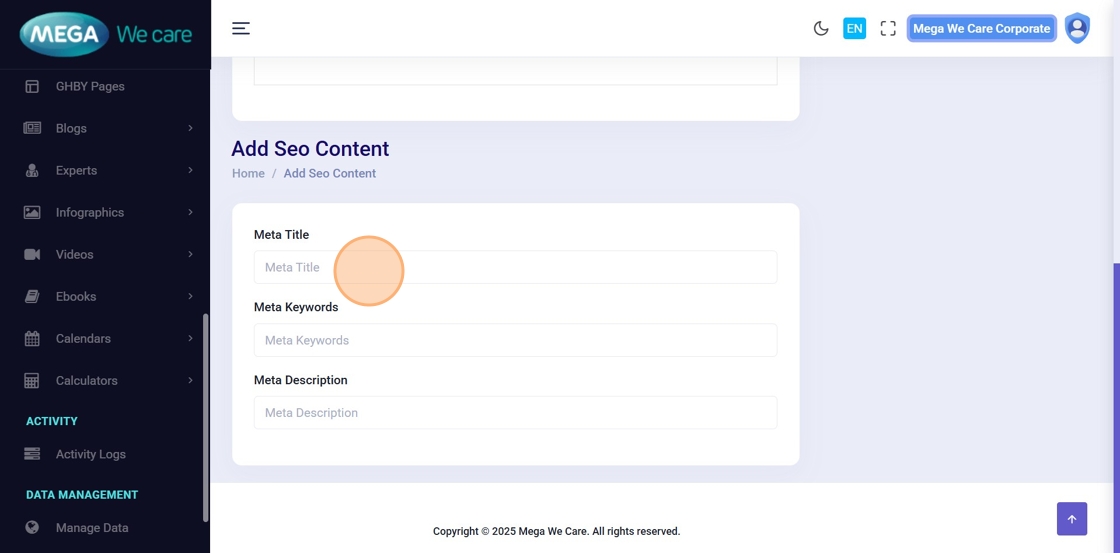
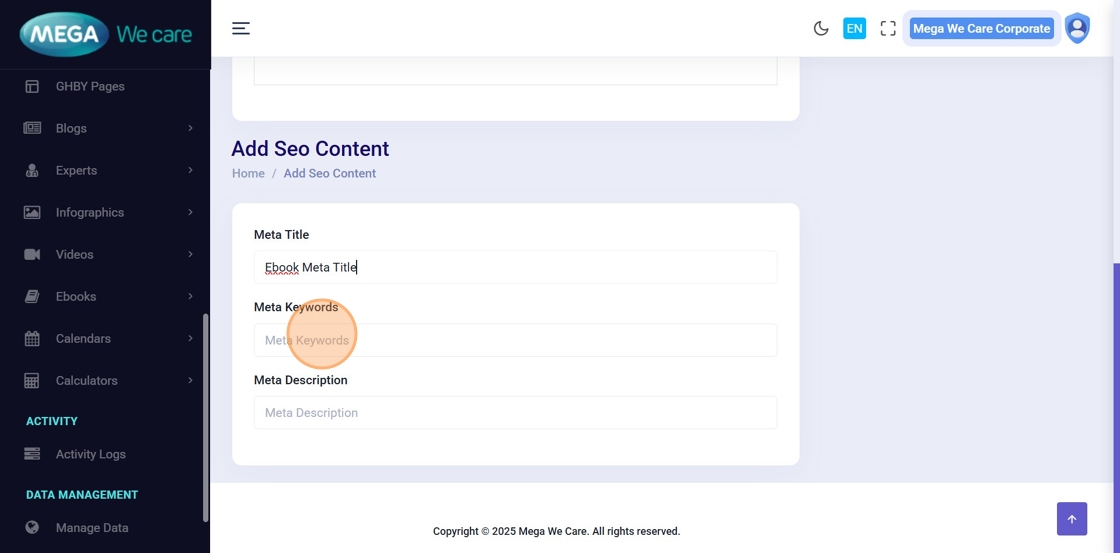
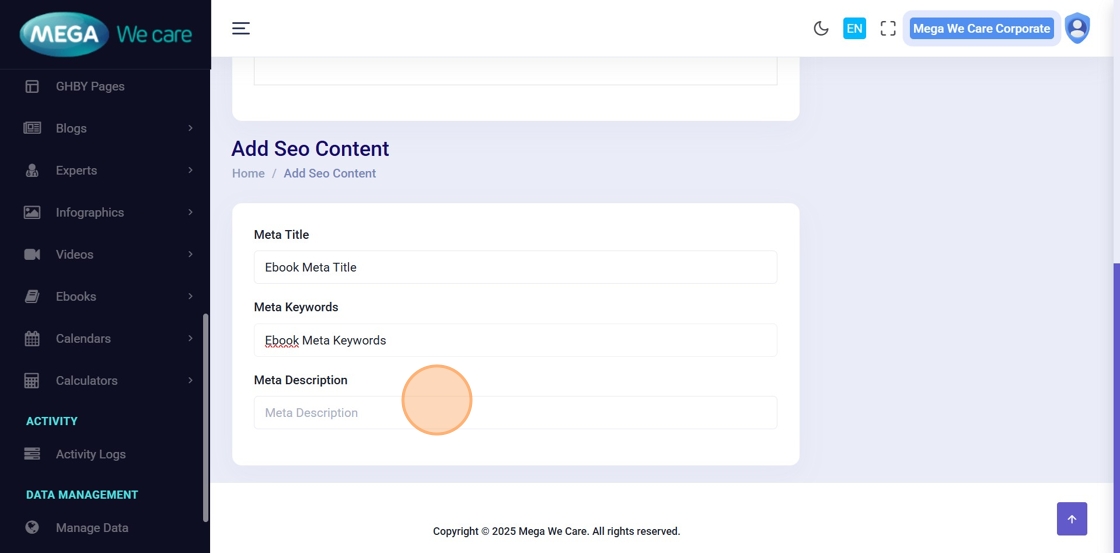
Step 10–12: Add SEO Details
- Meta Title
- Meta Keywords
- Meta Description
Step 13–14: Save Ebook
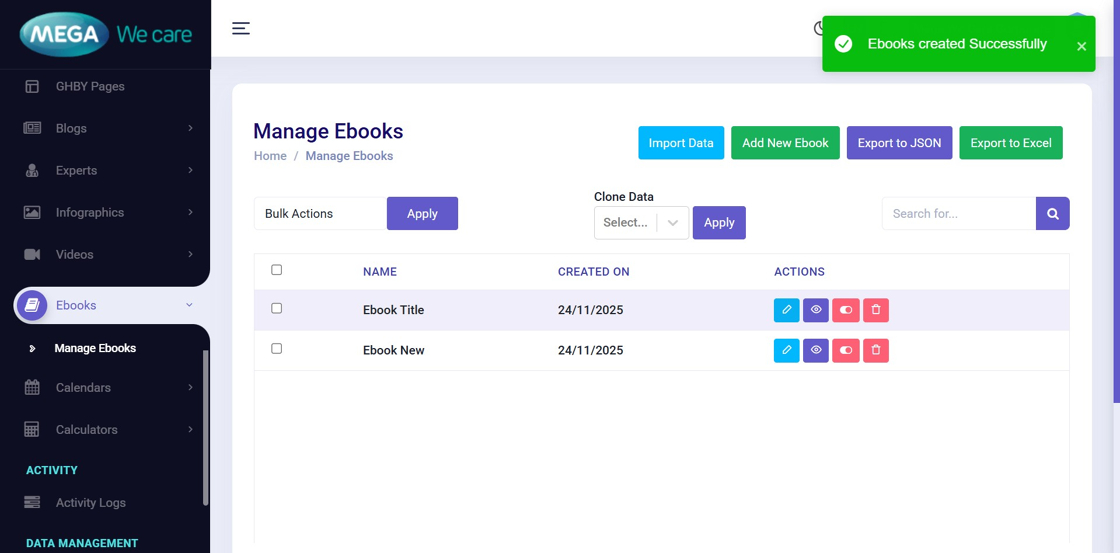
Click Save to create the ebook and wait for the confirmation message.
Edit and Update Ebooks
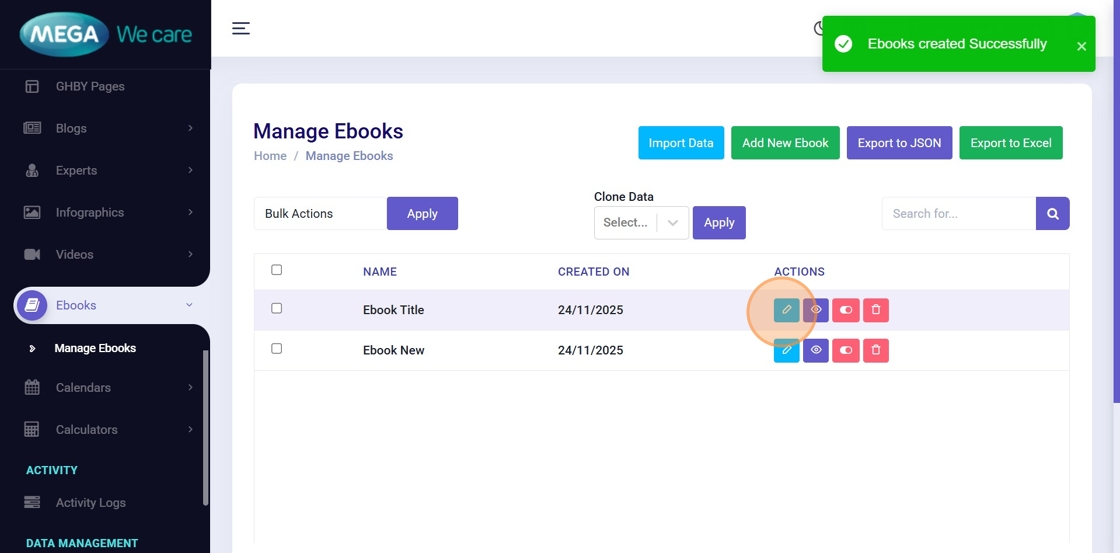
Step 15: Open Edit Mode
Click the Edit icon next to the ebook you want to update.
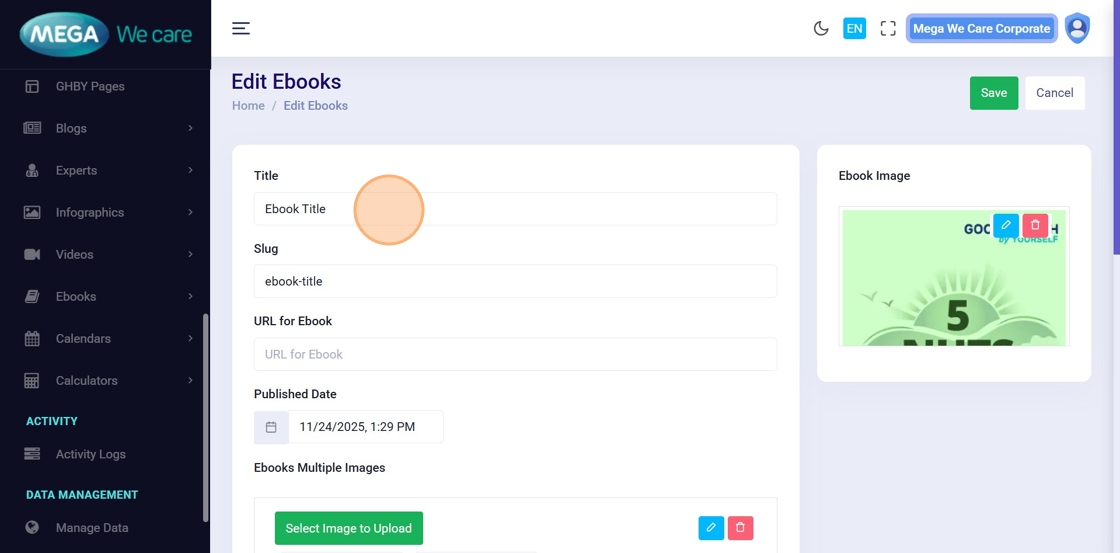
Step 16–17: Update Title and Slug
Modify the ebook Title or update the Slug if required.
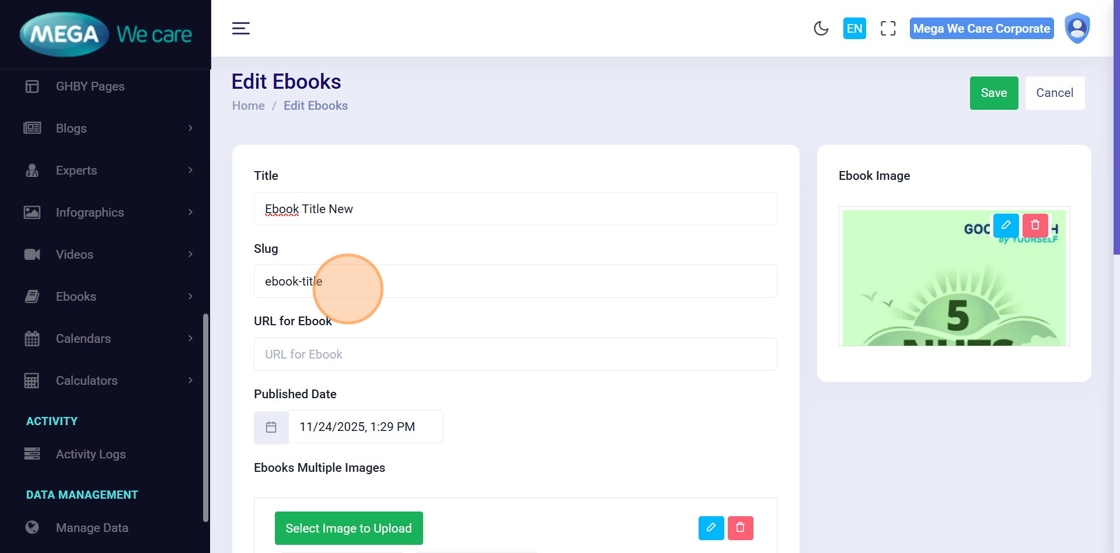
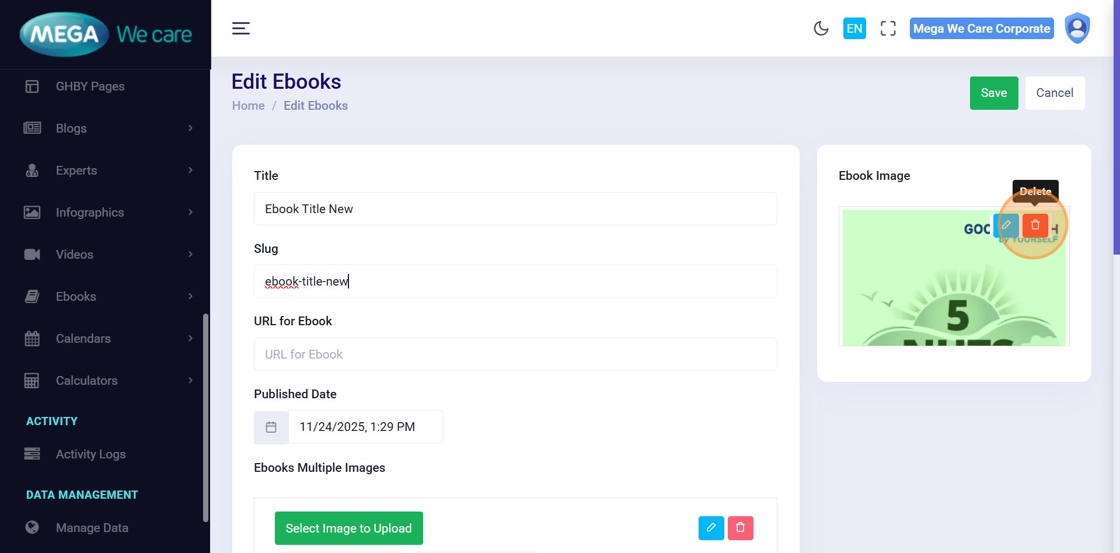
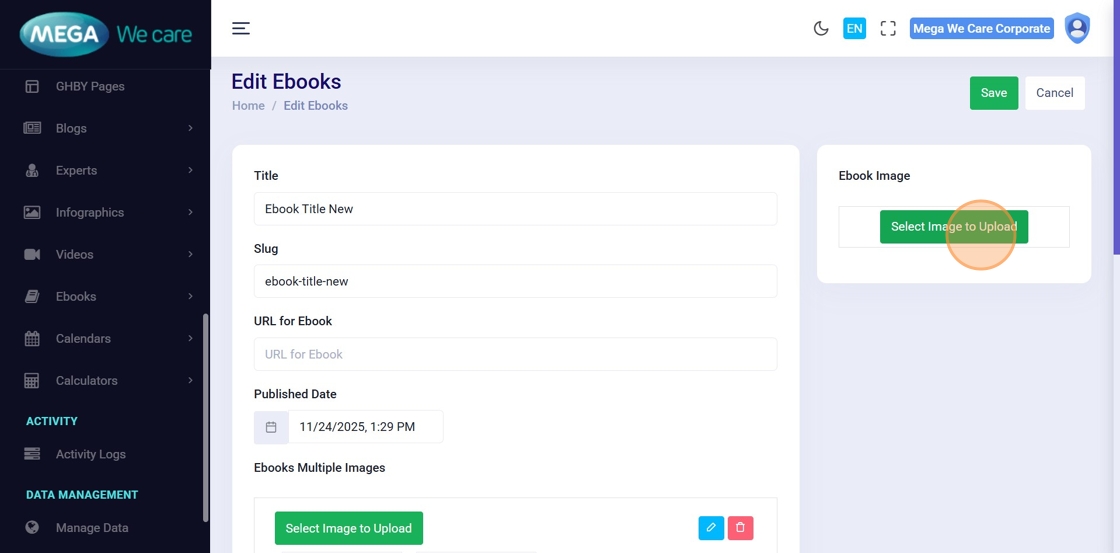
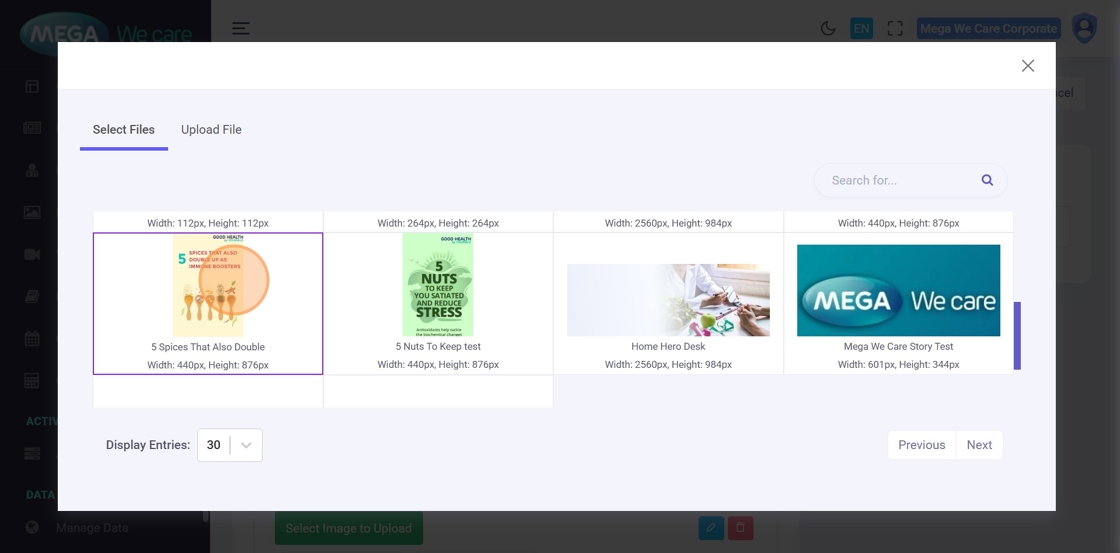
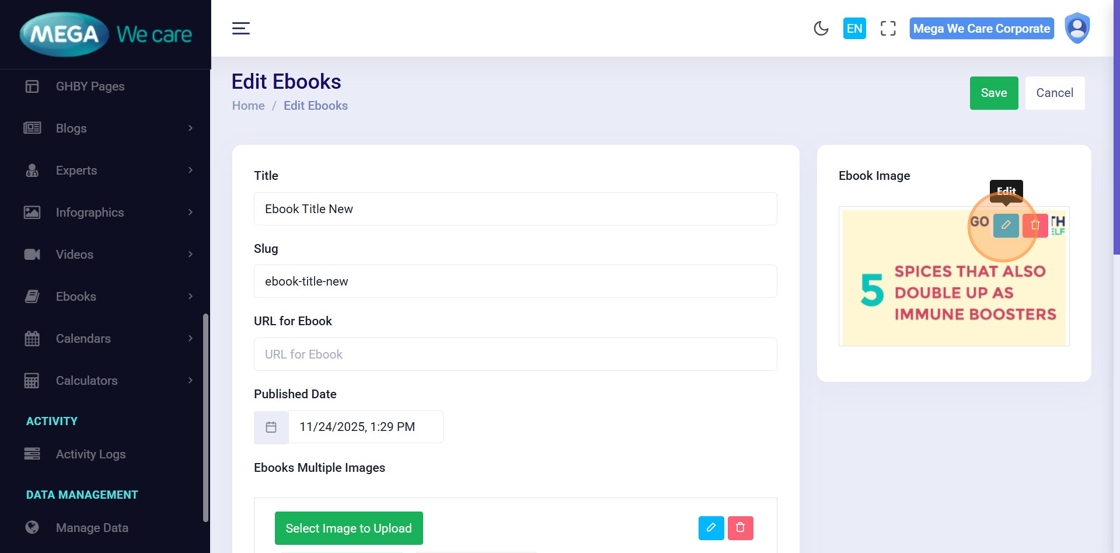
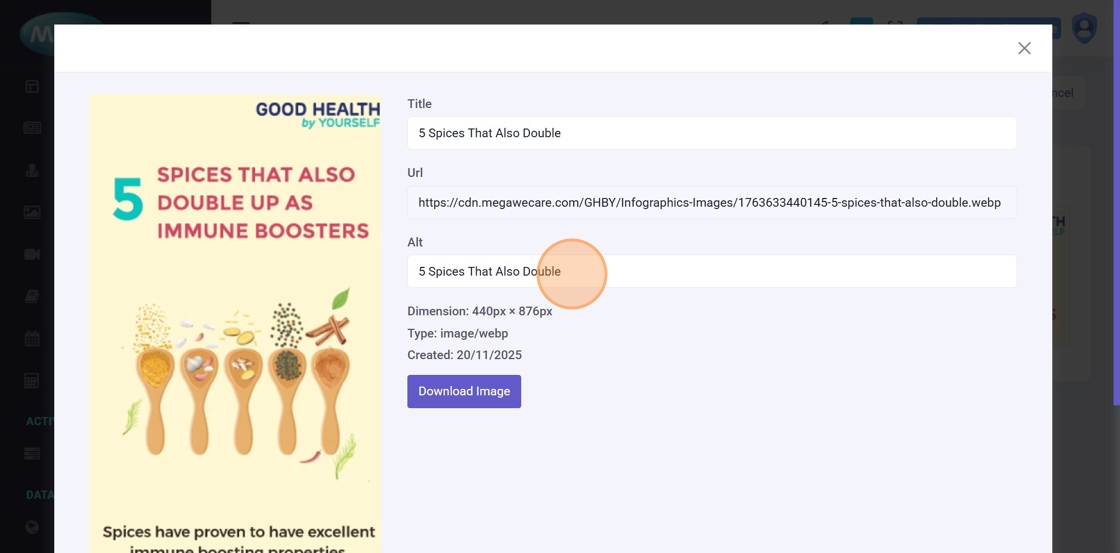
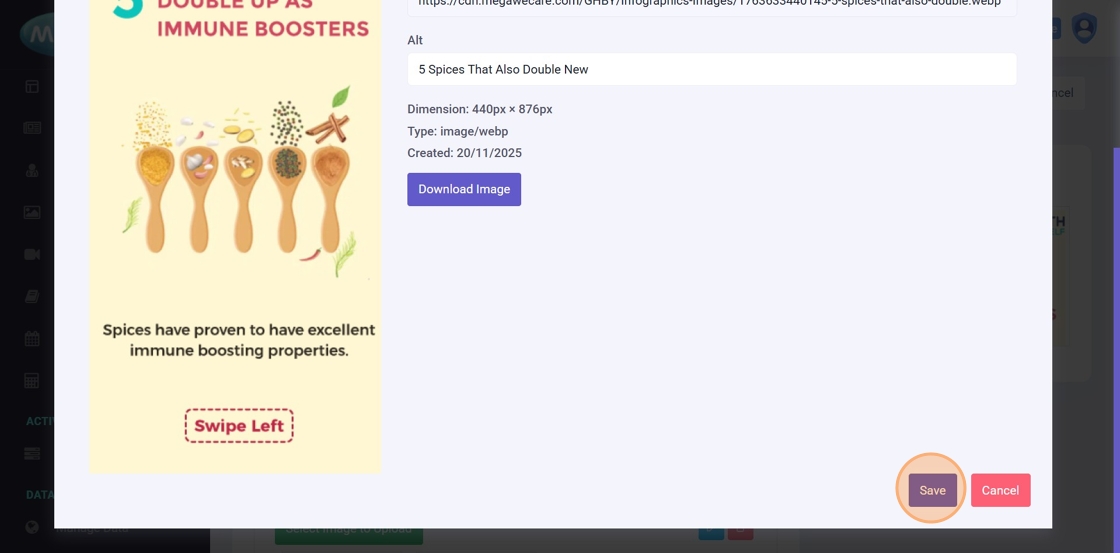
Step 18–23: Update Ebook Image
Remove the existing image, upload a new one, edit image properties such as title or alt text, and save changes.
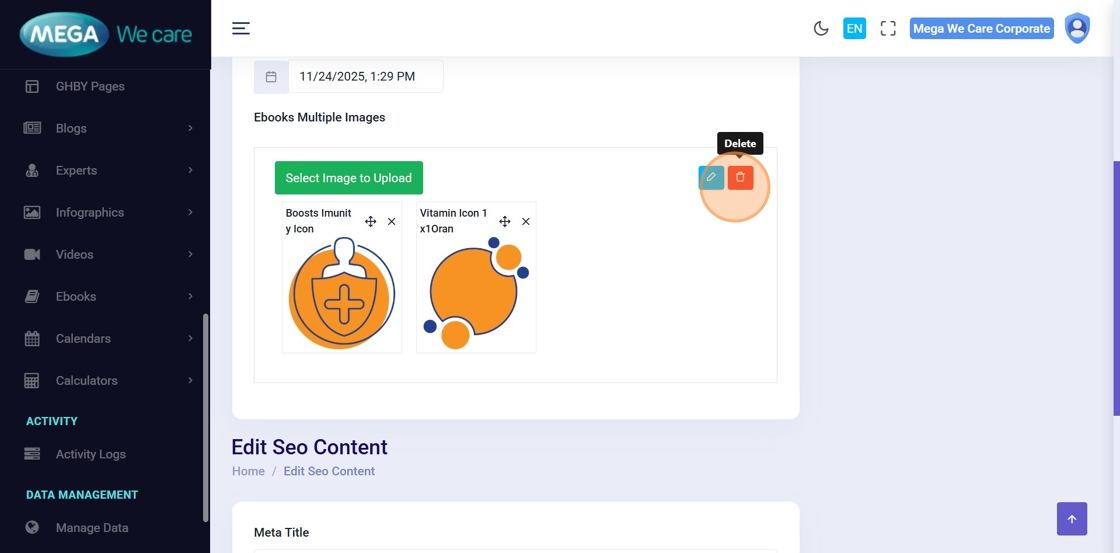
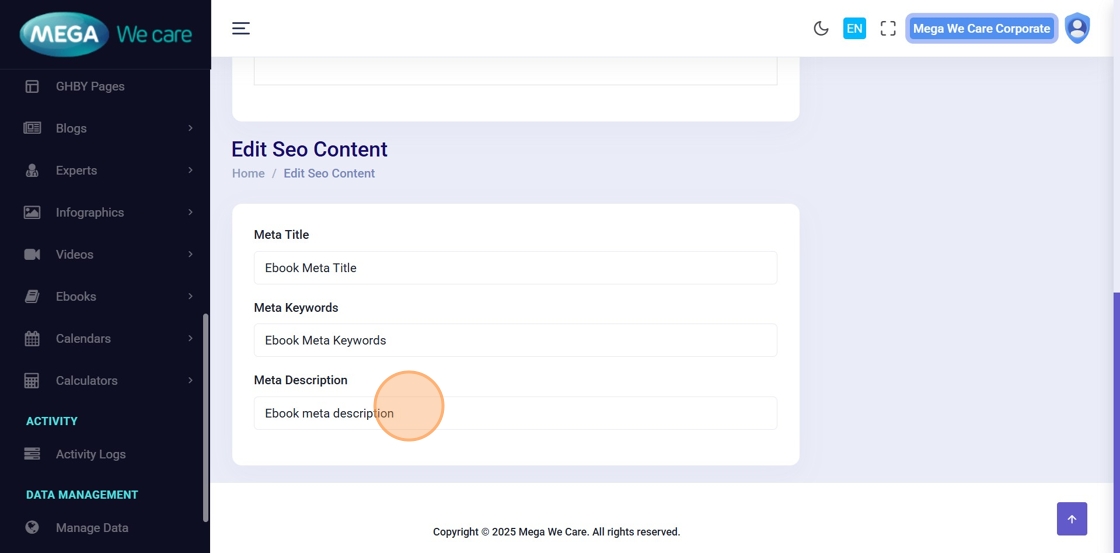
Step 24–25: Update Additional Images and SEO
Remove extra images if required and update SEO fields.
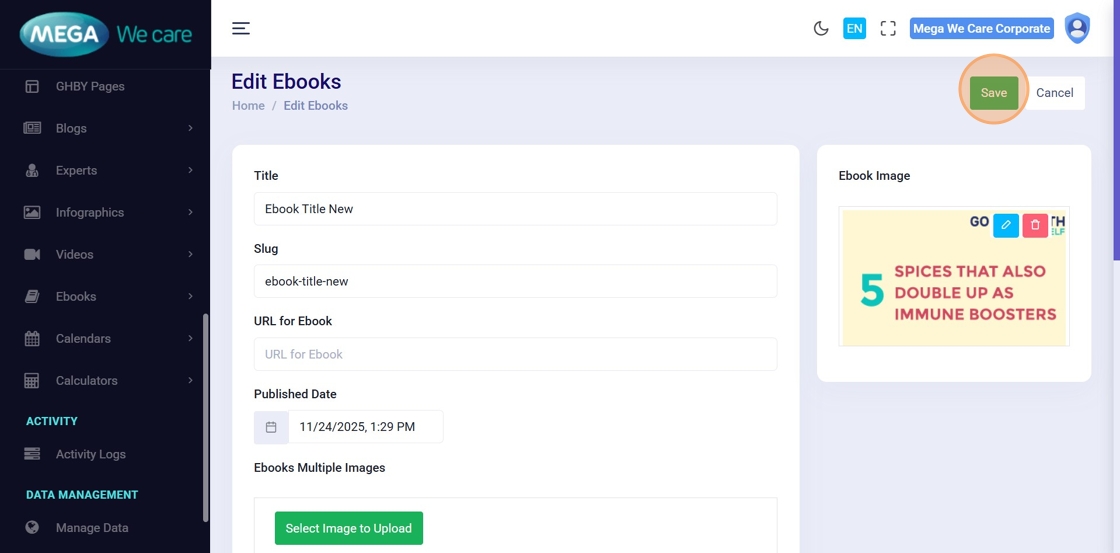
Step 26: Save Updates
Click Save to apply all ebook updates.
Delete Ebooks
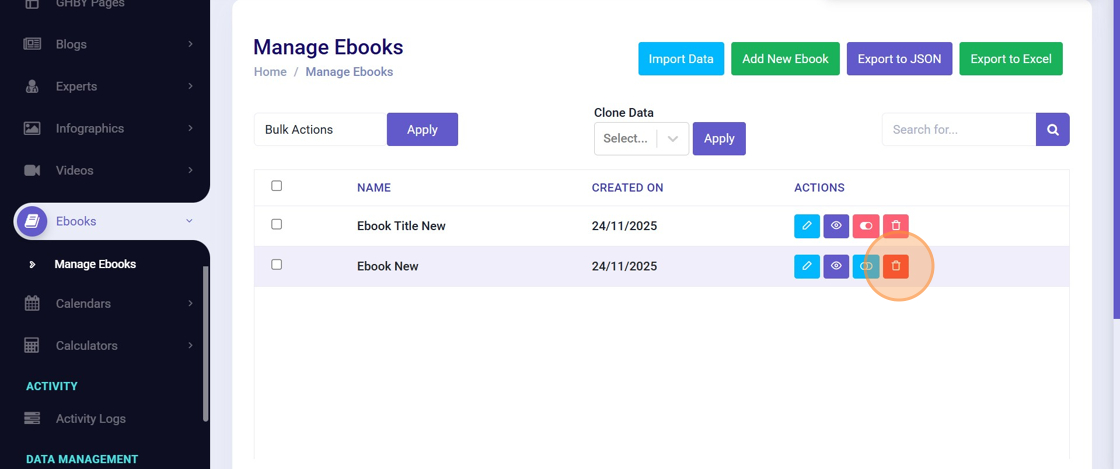
Step 27–28: Delete Ebook
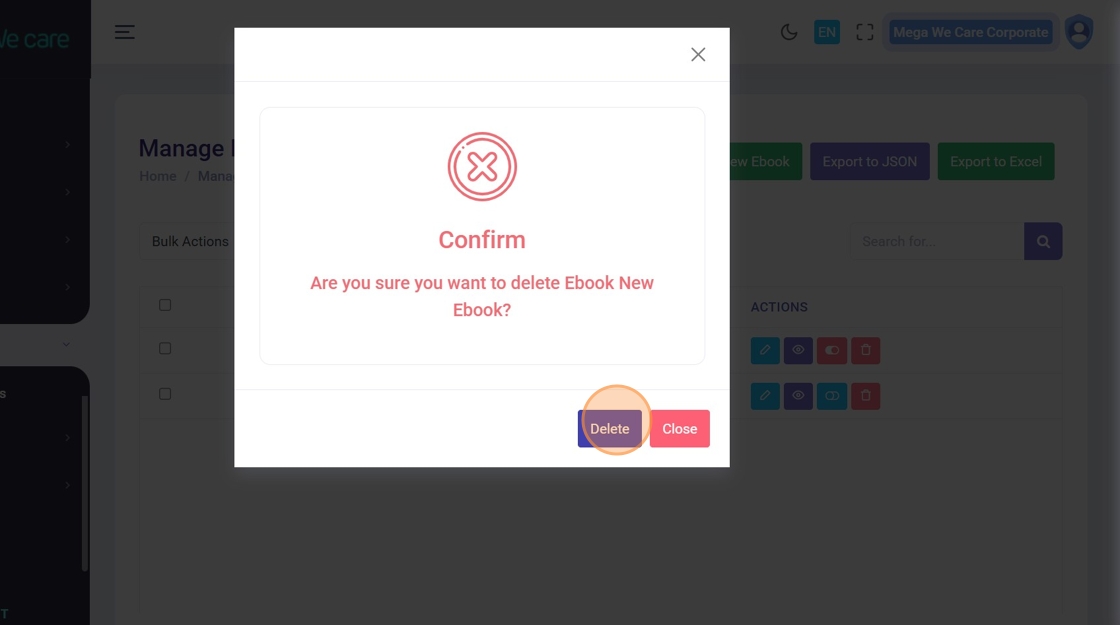
Click the Delete icon for the ebook and confirm deletion in the popup.
Once deleted, the ebook cannot be restored.
Important Notes
- Upload images only in WEBP format
- You can upload up to 20 ebook images at a time
Summary
By using the Ebooks module, administrators can create, update, and delete ebooks efficiently while maintaining a clean, organized, and SEO-optimized ebook library.