Page Navigation
How to Clone, Download, and Generate a Database Backup on Backend Dashboard
This document explains how the Database Management module allows users to safely manage databases across different environments. Using this module, users can clone databases between environments (Local, Staging, and Production), download database copies, and generate secure backups for recovery or migration purposes.
Overview
By following this document, you will be able to:
- Clone databases between environments (Local ↔ Staging ↔ Production)
- Download a database for offline use or migration
- Generate and download database backups in GZIP format
- Verify sensitive operations using password confirmation
Clone a Database
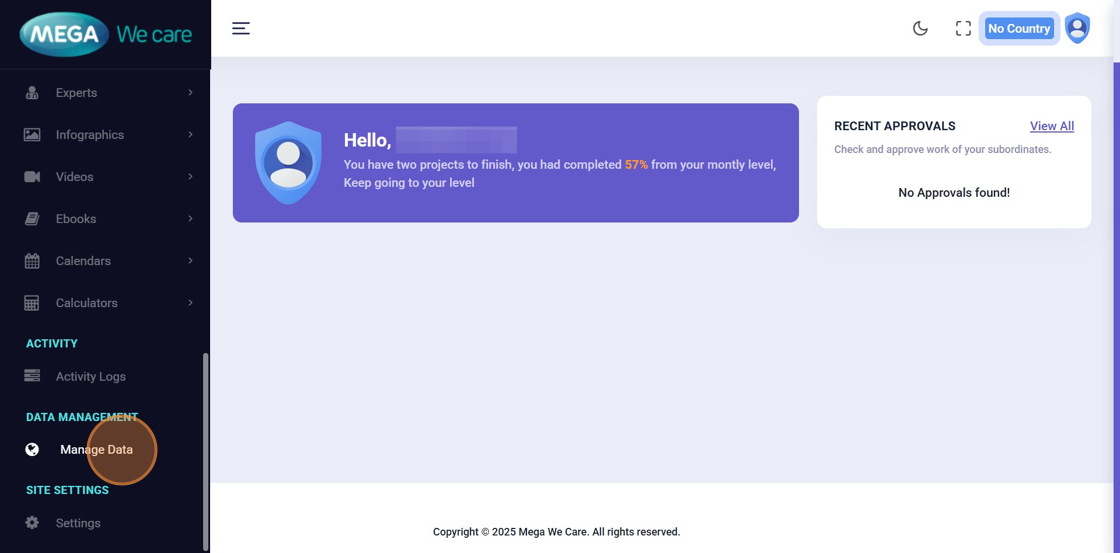
Step 1: Open Manage Data
From the Admin Dashboard, click Manage Data.
This opens database cloning, download, and backup options.

Step 2: Select Source Database
Choose the source database you want to clone
(e.g., Local → Staging or Staging → Production).
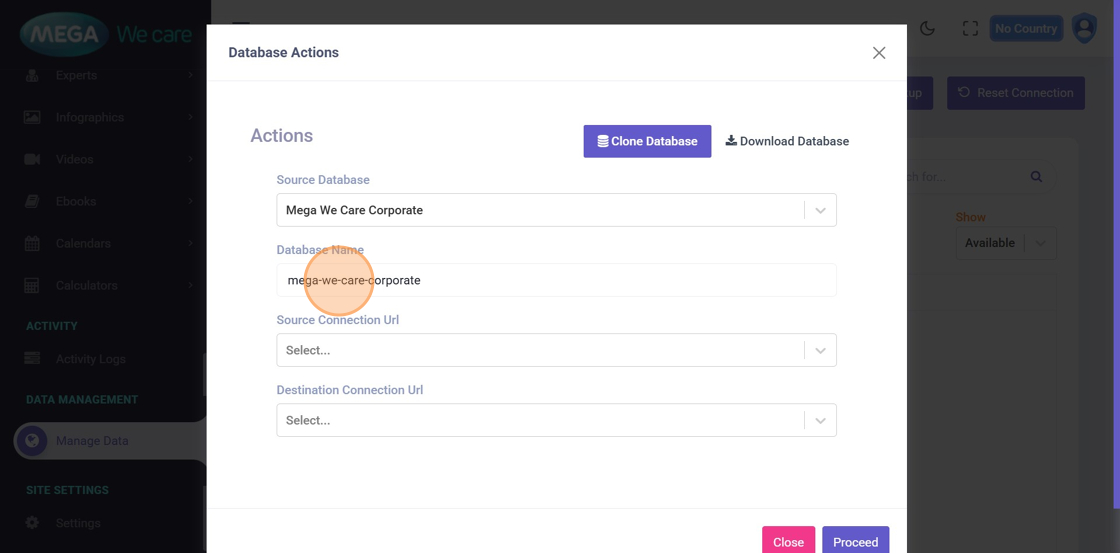
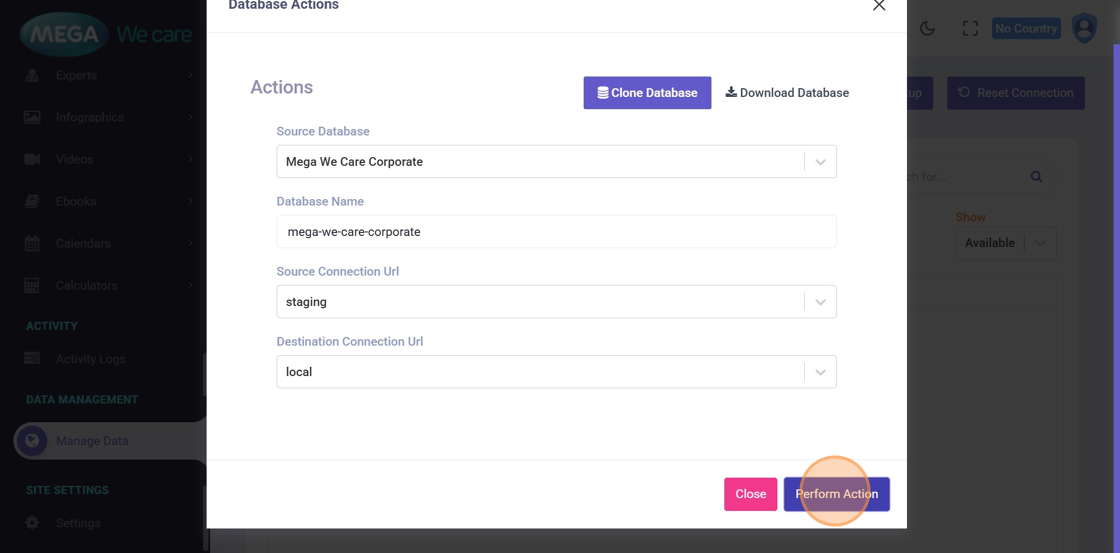
Step 3: Enter Database Name
Enter the exact Database Name
(example: mega-we-care-corporate).

Step 4: Select Source Connection
Choose the Source Connection URL
(Local, Staging, or Production).
Step 5: Select Destination Connection
Select the Destination Connection URL where the database will be cloned.

Step 6: Proceed with Cloning
Click Proceed to continue with the cloning process.
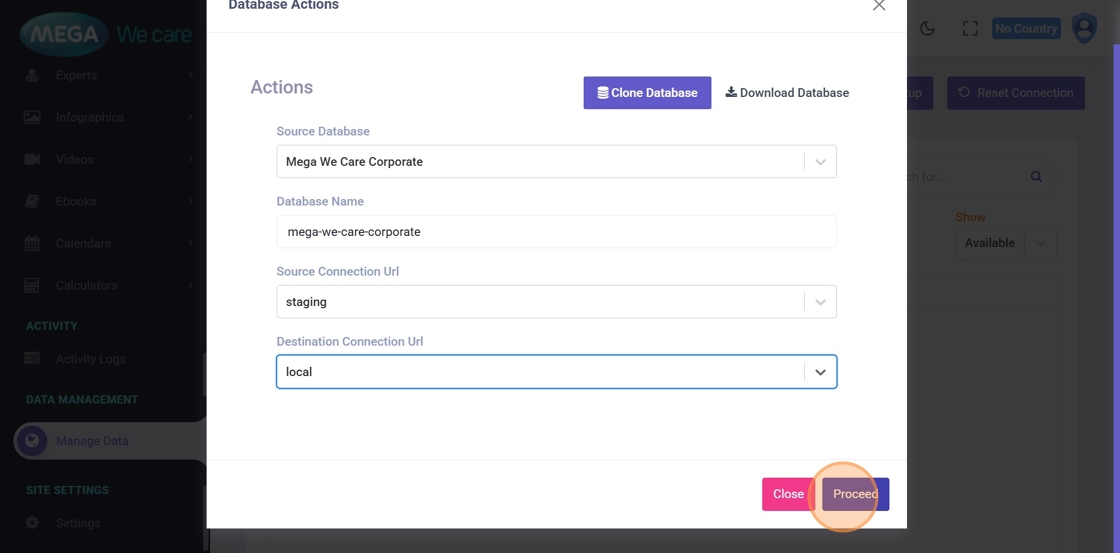
Step 7: Verify Action
Enter the verification password provided by the system administrator.
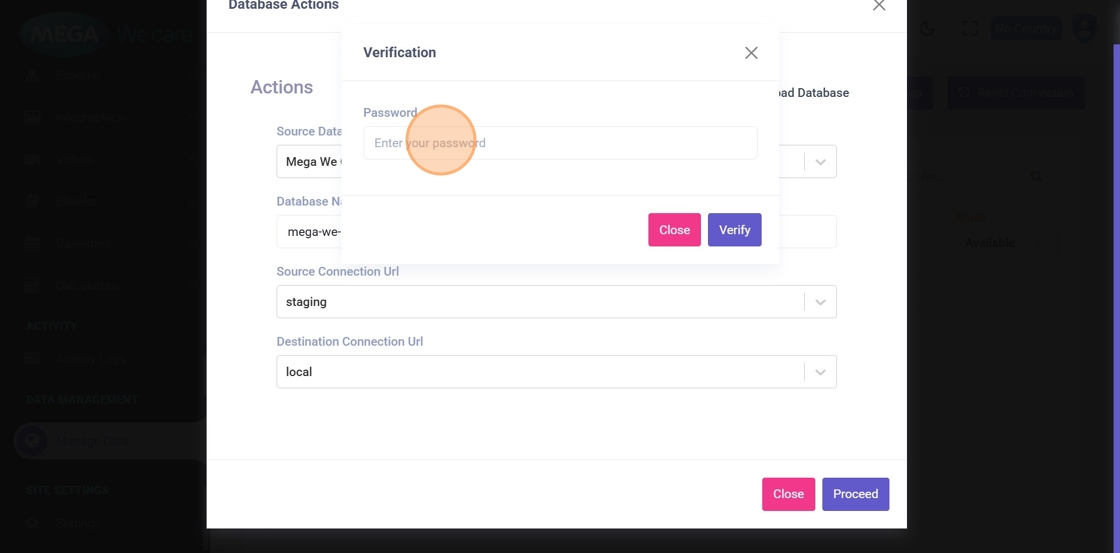
Step 8: Confirm Verification
Click Verify to authorize the action.
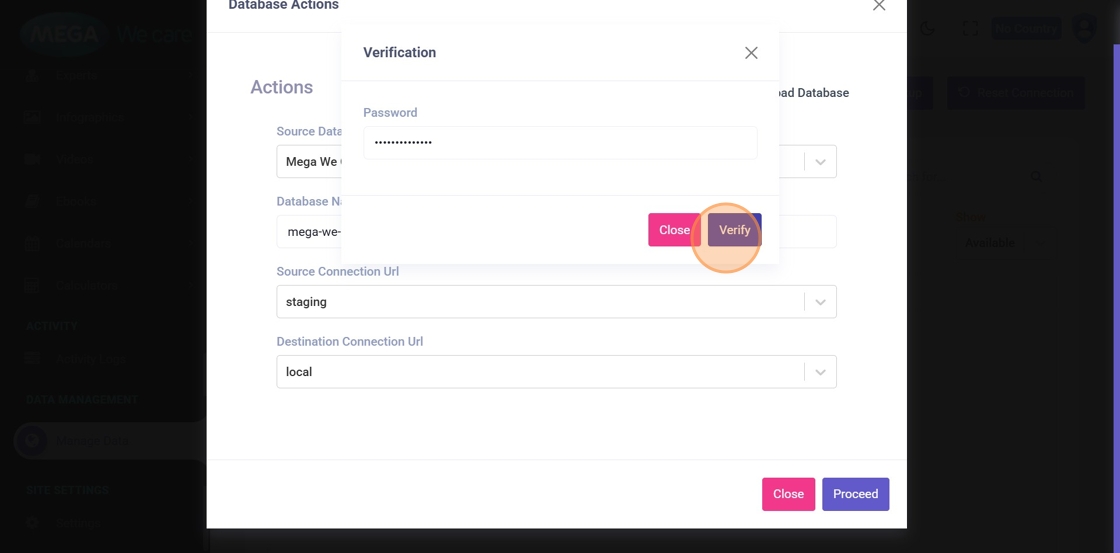
Step 9: Perform Clone Operation
Click Perform Action to start cloning.
Once completed, the cloned database will be available in MongoDB Compass under the selected destination environment.
Download a Database
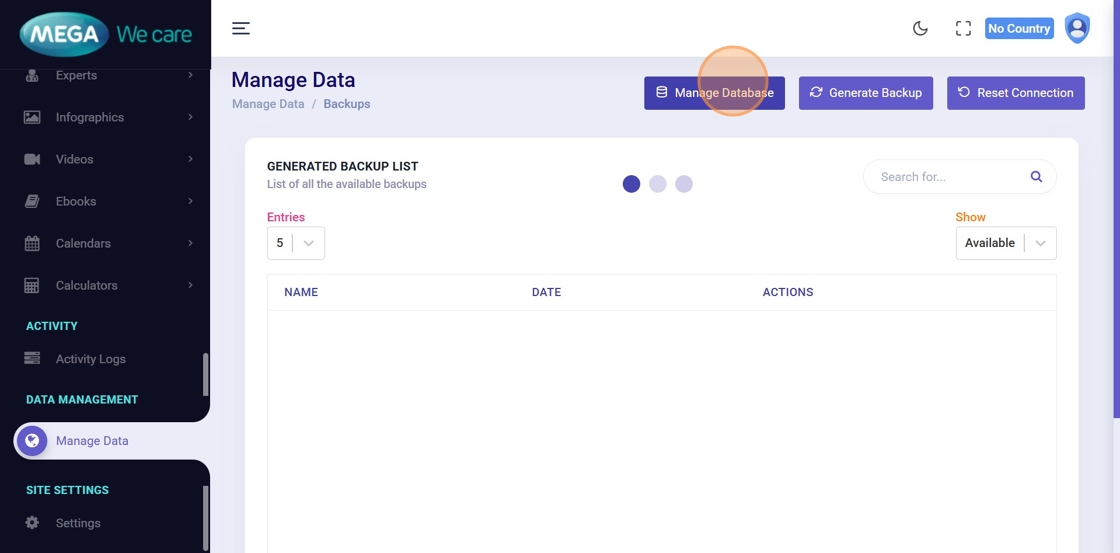
Step 10: Open Manage Database
Click Manage Database from the dashboard.
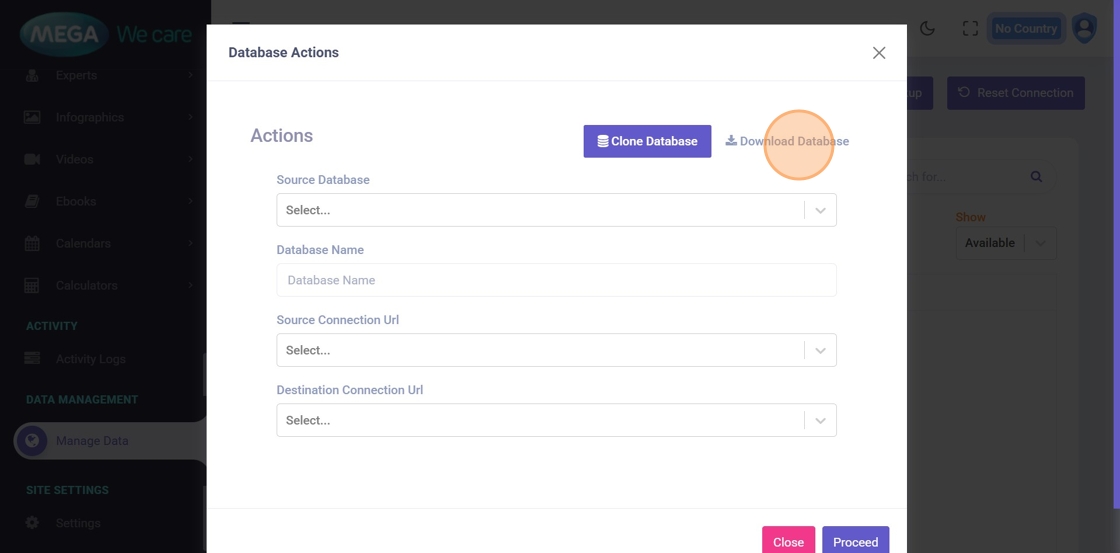
Step 11: Open Download Database Tab
In the popup, switch to the Download Database tab.
Step 12: Select Source Database
Choose the database name you want to download.

Step 13: Select Environment
Select the environment:
- Local
- Staging
- Production

Step 14: Proceed to Download
Click Proceed to continue.
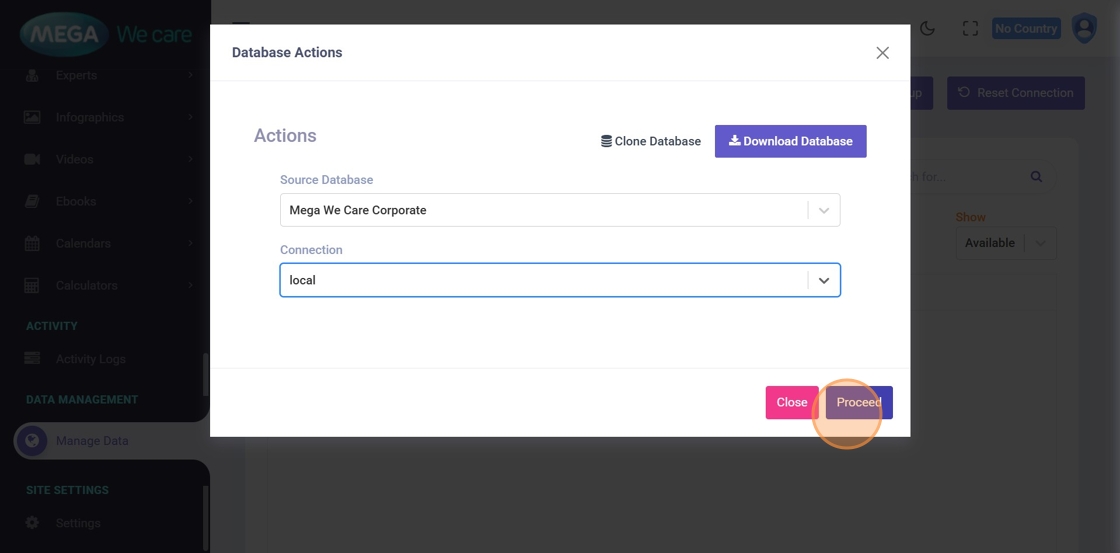
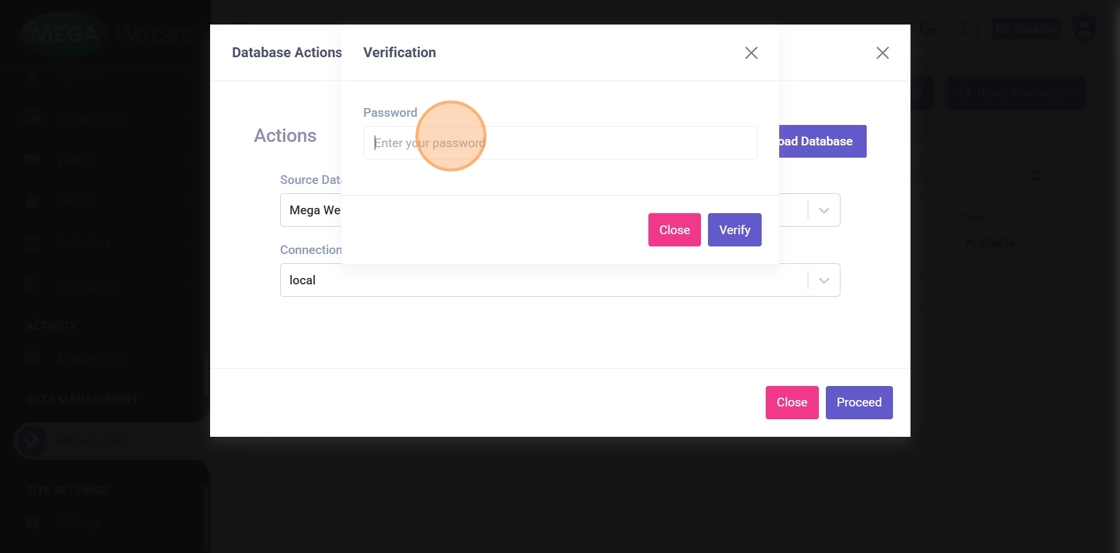
Step 15: Verify Download
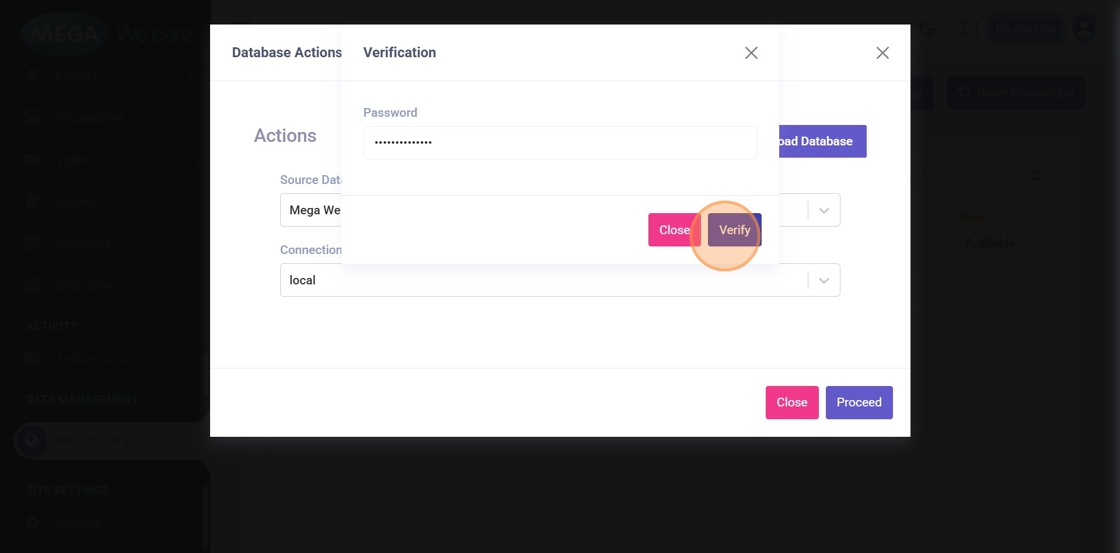
Enter the verification password and click Verify.
Step 16: Confirm Verification
Verification success message will appear.
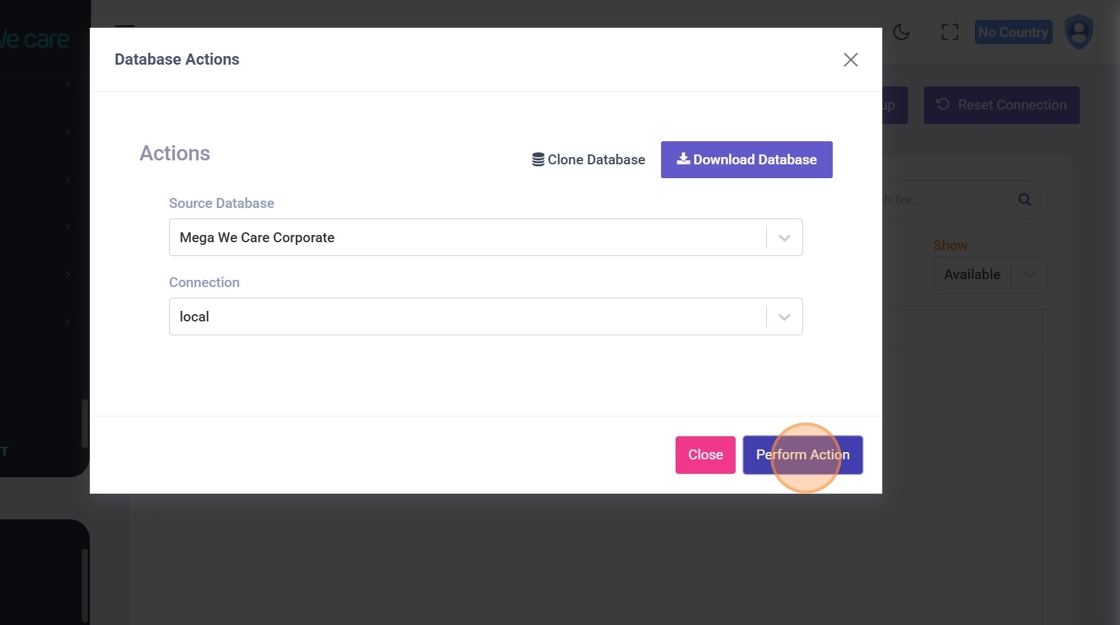
Step 17: Download Database
Click Perform Action to download the database file to your device.
Generate & Download Database Backup
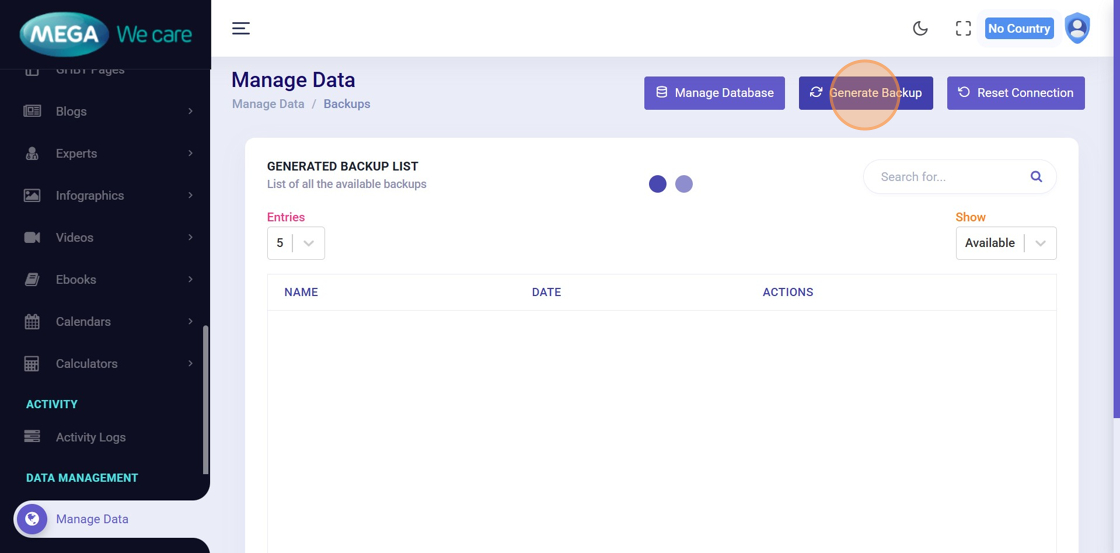
Step 18: Generate Backup
Click Generate Backup to create a backup of the active database.
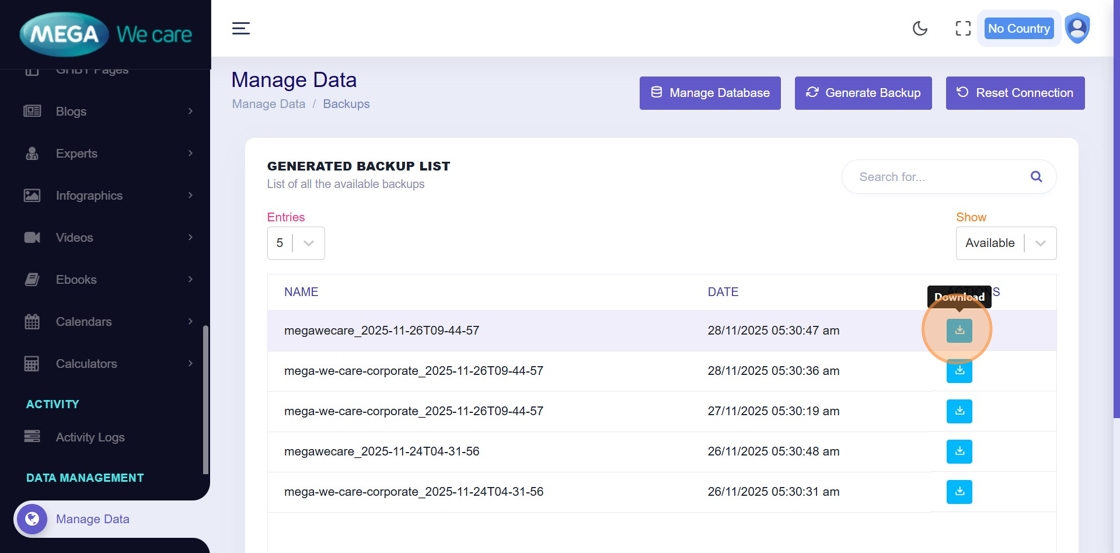
Step 19: Download Backup File
Download the generated backup file in GZIP format by clicking the download icon.
Important Notes
- Always verify the source and destination environment before cloning
- Take a backup before cloning Production data
- Store downloaded backups securely
- Never share verification passwords publicly
- Prefer Local/Staging testing before Production cloning
Summary
By following this workflow, users can safely clone databases across environments, download databases for migration or offline use, generate secure backups, protect critical actions with password verification, and maintain data integrity and deployment safety across all environments.