Page Navigation
How to Add, Update and Delete HCP Blogs
The Health Practitioner (HCP) Blogs module allows users to create, edit, update, and delete professional healthcare blog content. This module supports structured content creation, table of contents linking, SEO optimization, PDF attachments, and access-based visibility settings to ensure high-quality and well-organized HCP blog publishing.
Overview
This guide explains how to:
- Create new HCP blogs
- Assign categories and subcategories
- Build a Table of Contents using anchor links
- Add structured blog content and references
- Configure SEO metadata and schema
- Upload supporting PDF documents
- Control blog visibility for medical experts
- Edit or permanently delete HCP blogs
Following these steps ensures HCP blogs are well-structured, searchable, and accessible to the correct audience.
Add New Health Practitioner Blog

Step 1: Open Manage HCP Blogs
After creating the required HCP category and subcategory, click Health Practitioner, then select Manage HCP Blogs.
Step 2: Start Creating a Blog
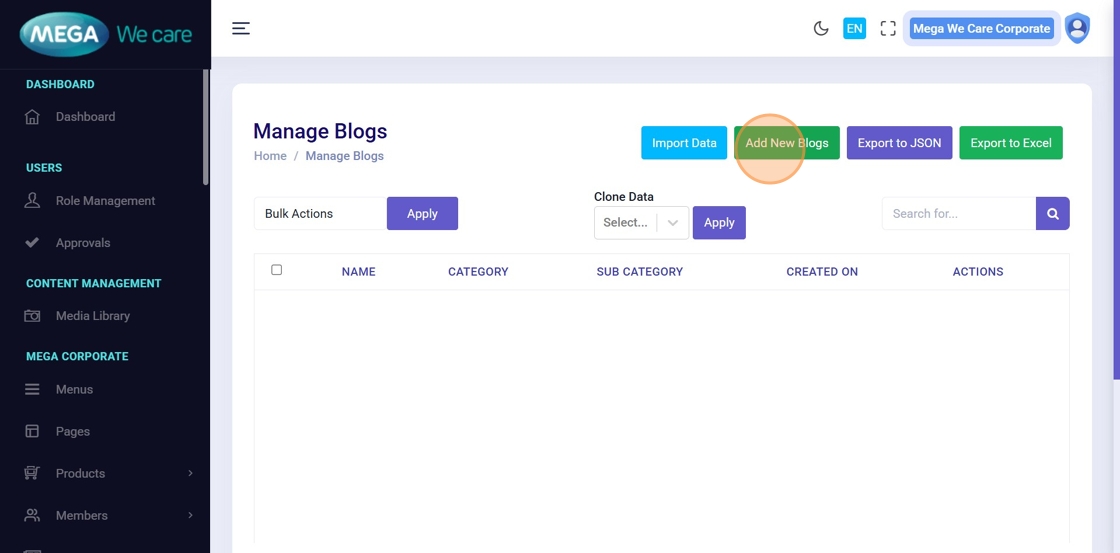
Click Add New Blogs to begin creating a new HCP blog.
Step 3: Enter Blog Title
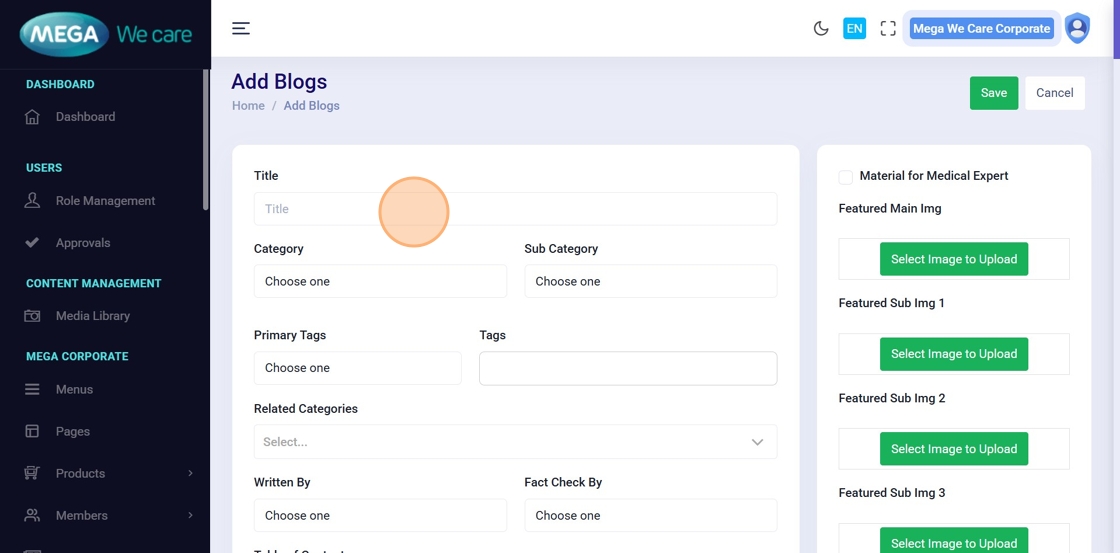
Enter the blog title in the Title field.
Step 4: Select Category and Sub Category
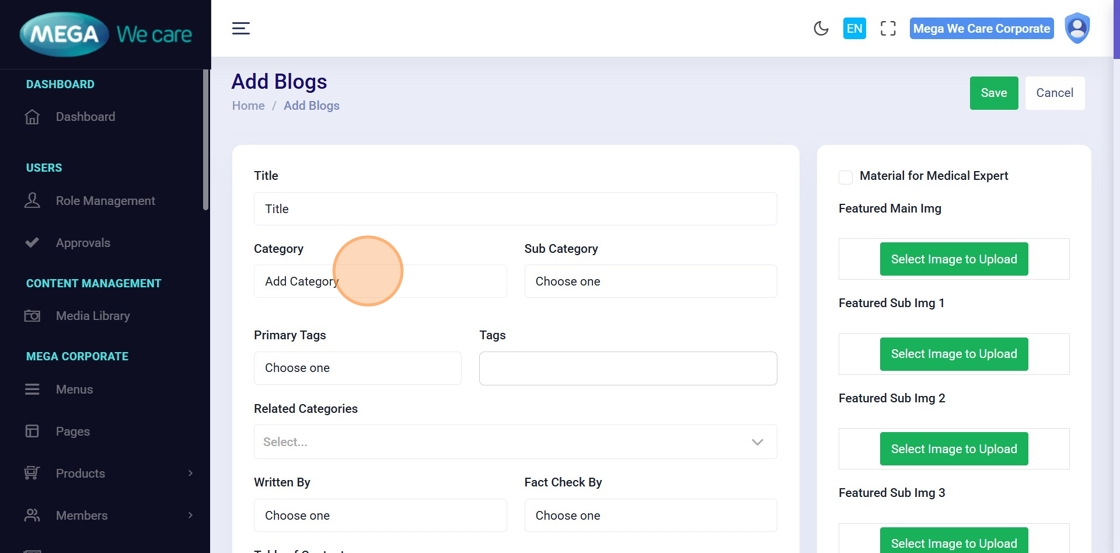
Select the appropriate Category from the dropdown.
If required, select a Sub Category; otherwise, leave it blank.

Step 5: Create Table of Contents (TOC)
To build a Table of Contents:
- Select each TOC item
- Click the Link icon or press Ctrl + K
-
Add an anchor reference (example:
#background)
These anchors will link TOC items to corresponding sections in the main content.

Step 6: Add Key Highlights
In the Key Highlights section, enter important summary points and format them as bullet points.

Step 7: Add Main Blog Content
Enter the main content using structured formatting:
- Headings (H2, H3, H4)
- Paragraphs and lists
- Hyperlinks and images
Ensure each section heading includes the matching anchor ID so the Table of Contents scrolls correctly.

Step 8: Add References
In the References section, add references as a numbered list, including source URLs where applicable.
SEO and Schema Configuration
Step 9–11: Add SEO Metadata
- Enter the Meta Title
- Add Meta Keywords separated by commas
- Enter the Meta Description
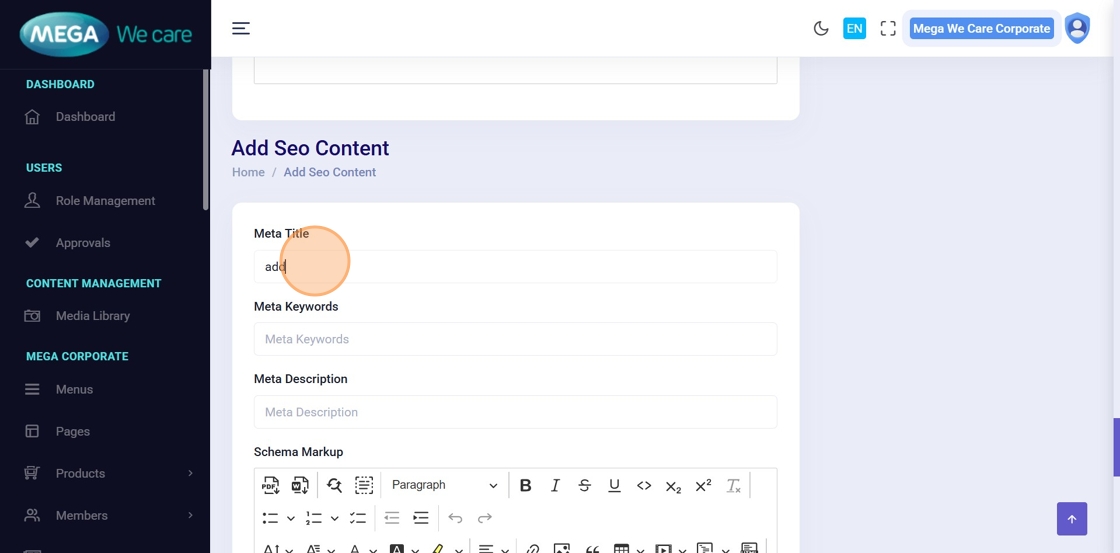
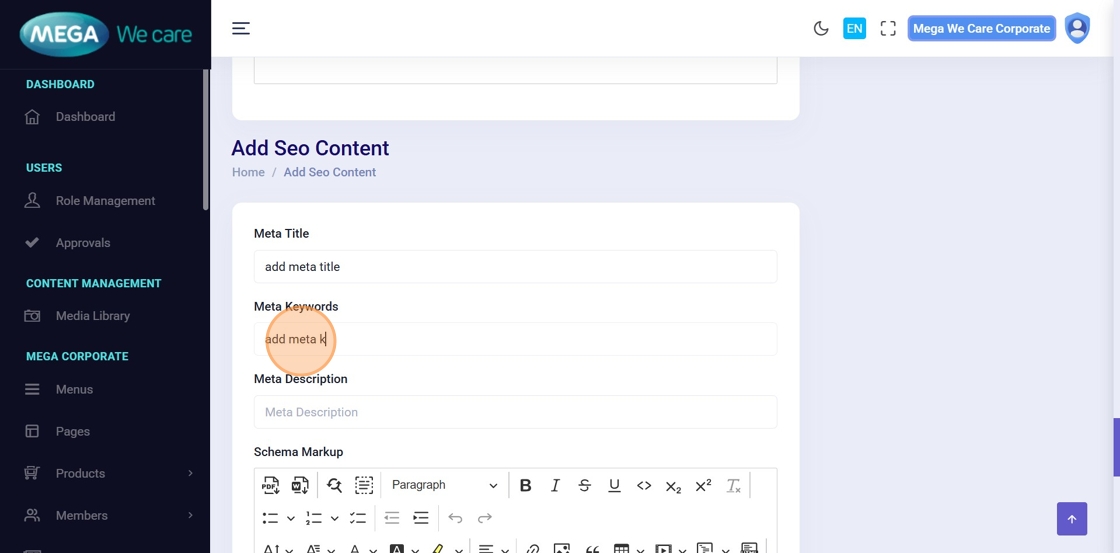
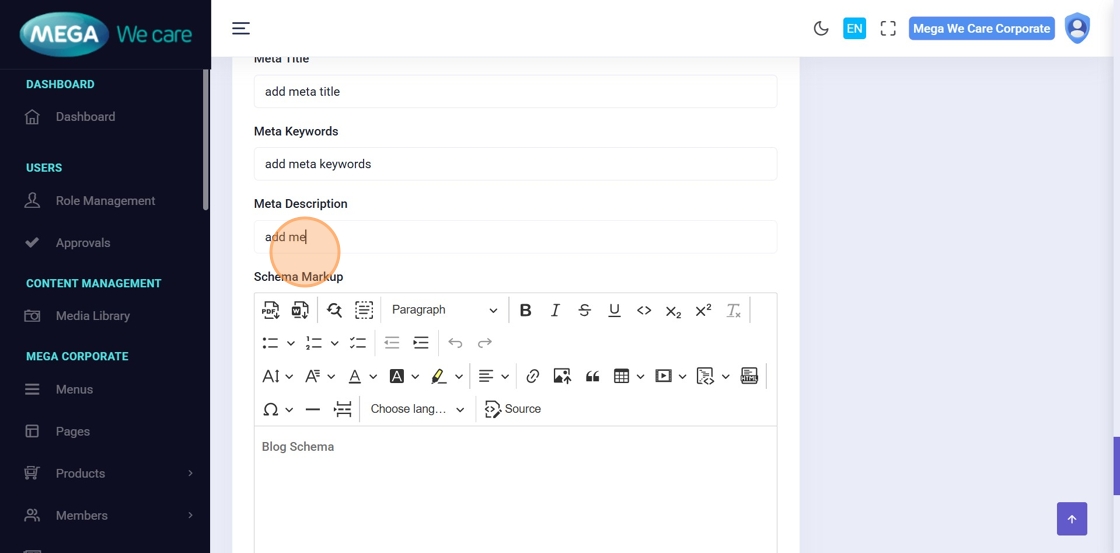
Step 12: Add Blog Schema
Add structured data in JSON-LD format inside the
<script
                type="application/ld+json"></script>
tag in the HCP Blog Schema field.
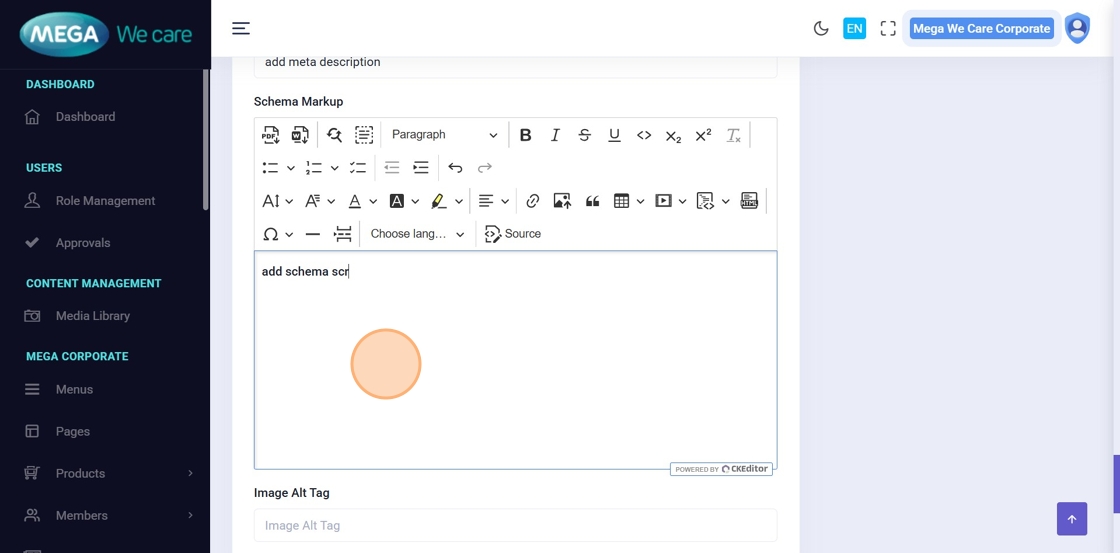
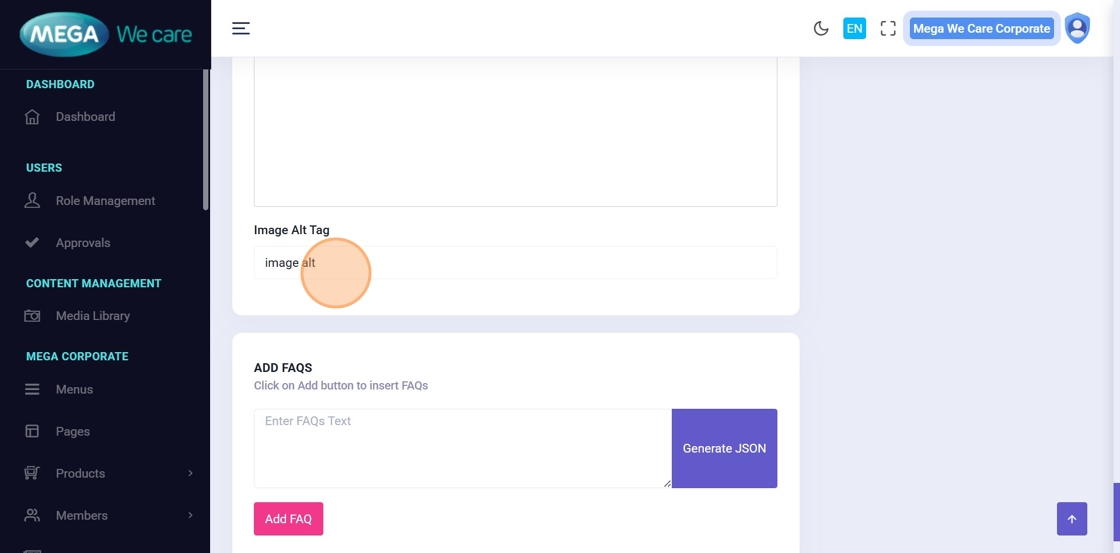
Step 13: Enter Image Alt Text
Enter the Image Alt Tag to improve accessibility and SEO.
Visibility and Attachments
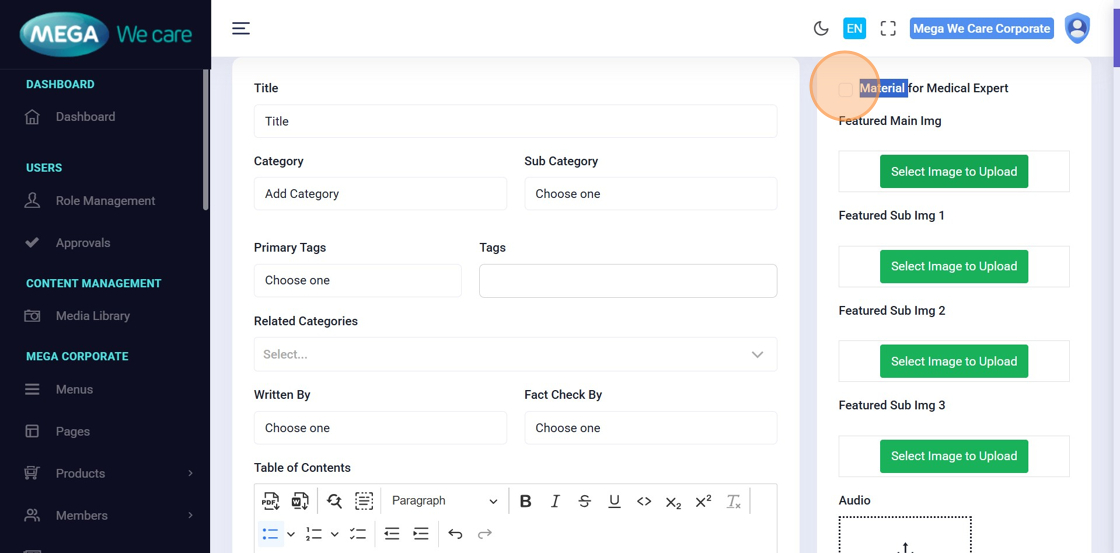
Step 14: Configure Blog Visibility
Enable Material for Medical Expert if the blog should be visible only to logged-in users.
Leave it unchecked for public visibility.
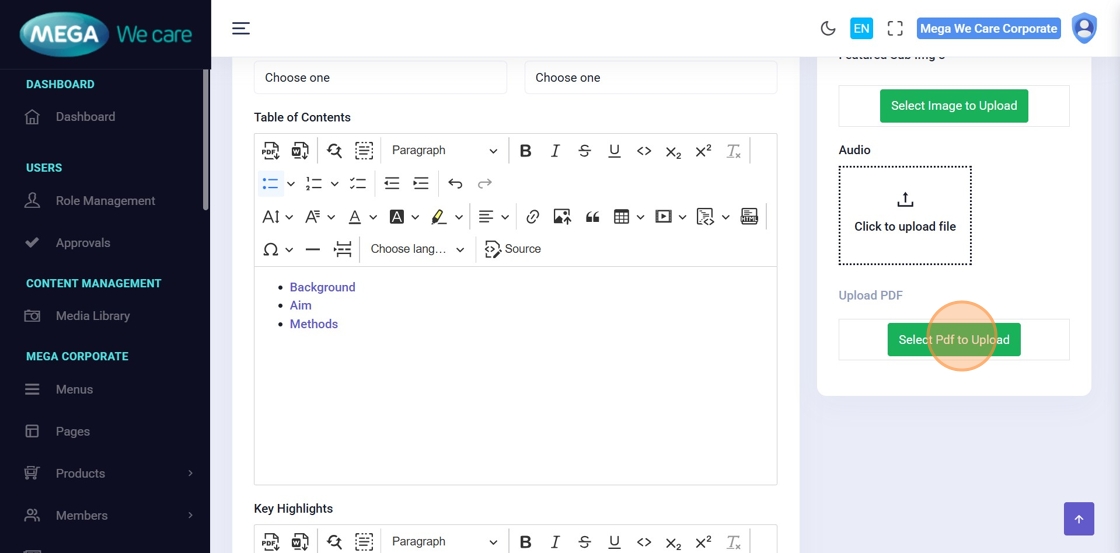
Step 15–16: Upload Supporting PDF
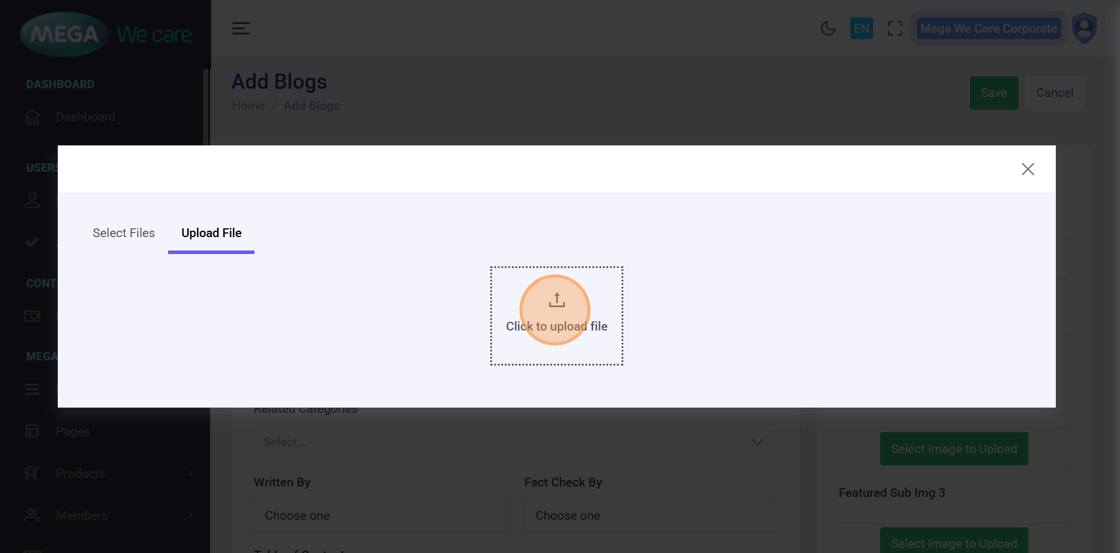
Click Select PDF to Upload and choose:
- An existing PDF from Select Files, or
- Upload a new PDF from your device
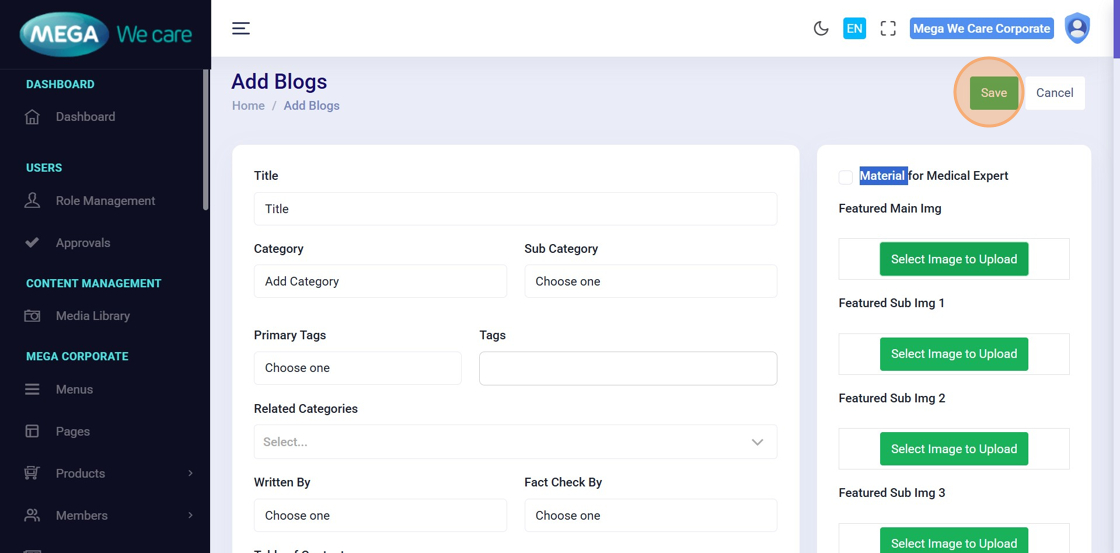
Step 17: Save the Blog
After completing all required fields, click Save to create the HCP blog.
Edit or Delete HCP Blogs
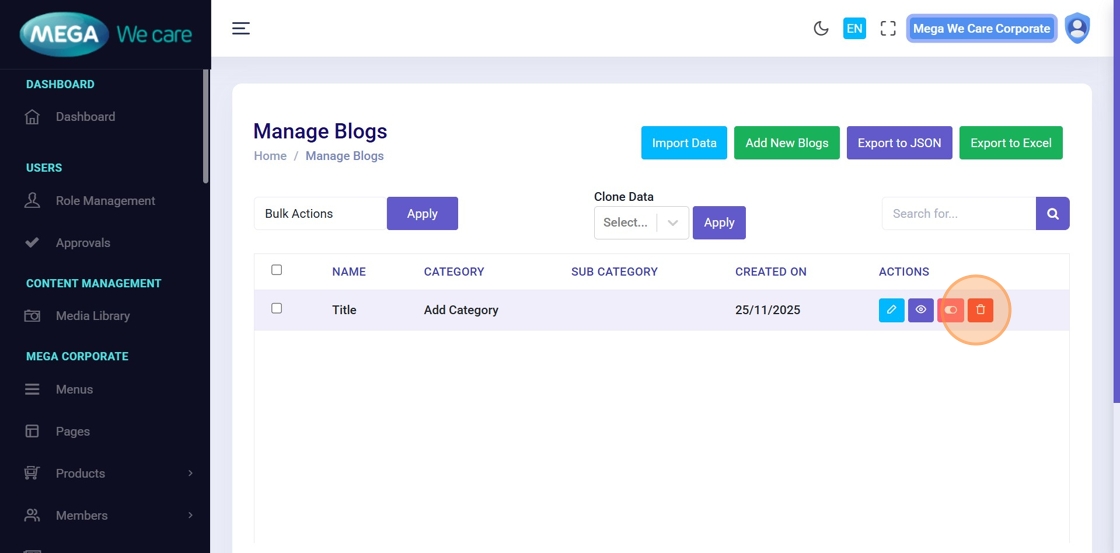
Step 18: Edit or Delete Blog
After creation, you can:
- Click Edit to update blog content
- Use the Delete icon to remove single or multiple blogs
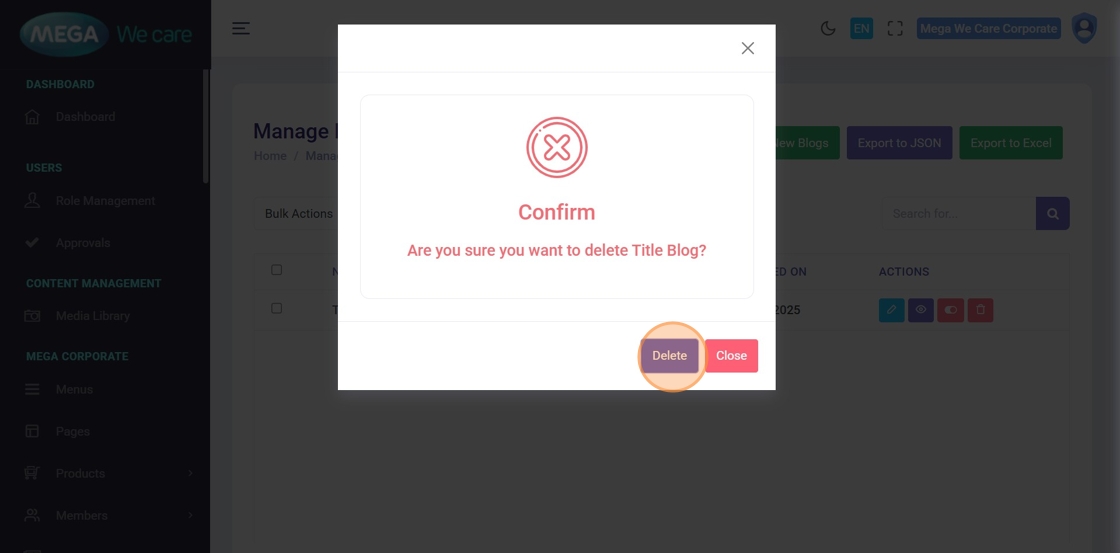
Step 19: Confirm Deletion
Confirm the deletion in the popup by clicking Delete.
Deleted blogs are permanently removed and cannot be restored.
Important Notes
- If the content is available in a PDF file and it contains one or two pages, manually add the content in the blog format as we shown in each steps above. If the PDF has more than two pages, upload the PDF file directly, there is no need to add the content manually.
- Upload images in WEBP format, ensure the image size is not too large, and do not use PNG, JPG, or JPEG files. If the image is in any of these formats, convert it to WEBP before uploading.
- Upload the PDF file and ensure the file size is not too large. If the PDF is large, compress it to the maximum possible extent before uploading.
Summary
By using the HCP Blogs module, administrators can create, organize, optimize, and manage professional healthcare blogs with structured content, SEO settings, and controlled visibility, ensuring consistent, searchable, and high-quality HCP blog content across the platform.