Page Navigation
How to Add, Update and Delete HCP Speakers
The HCP Speakers module enables administrators to create and manage professional Health Care Practitioner (HCP) speaker profiles. This includes adding speaker details, biographies, images, social media links, qualifications, and SEO metadata to ensure speakers are accurately represented and optimized for search visibility.
Overview
This guide explains how to:
- Add new HCP speaker profiles
- Enter short and detailed speaker descriptions
- Upload and manage speaker images
- Add social media links and professional details
- Configure SEO metadata and schema
- Edit existing speaker profiles
- Delete single or multiple speakers
Following these steps ensures consistent, professional, and SEO-optimized speaker profiles across the platform.
Add New HCP Speaker
1. Open Manage Speakers

To begin managing HCP speakers, click Health Practitioner, then select Manage Speakers.
2. Start Creating a Speaker
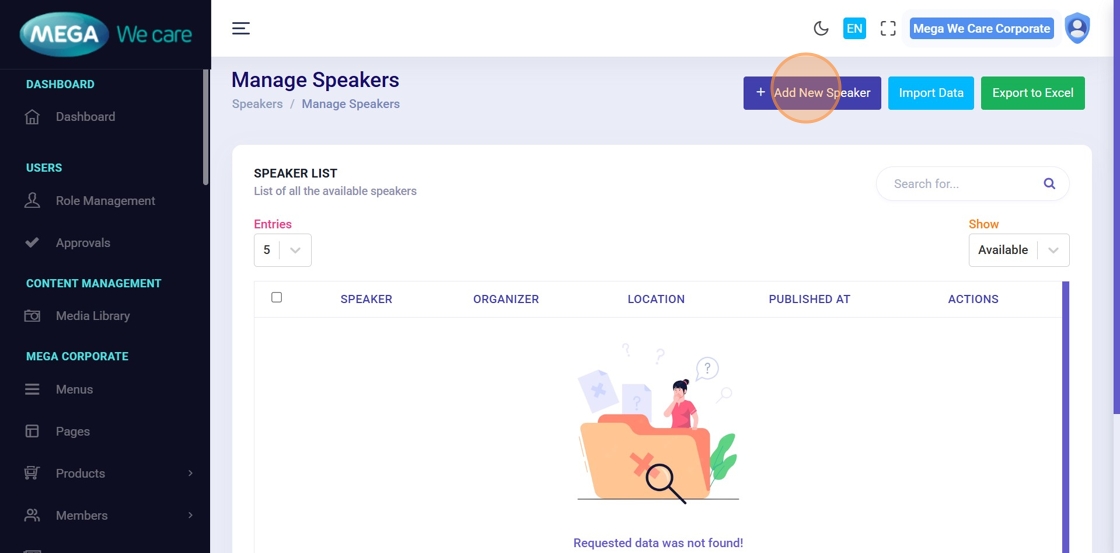
Click Add New Speaker to open the speaker creation form.
3. Enter Speaker Name
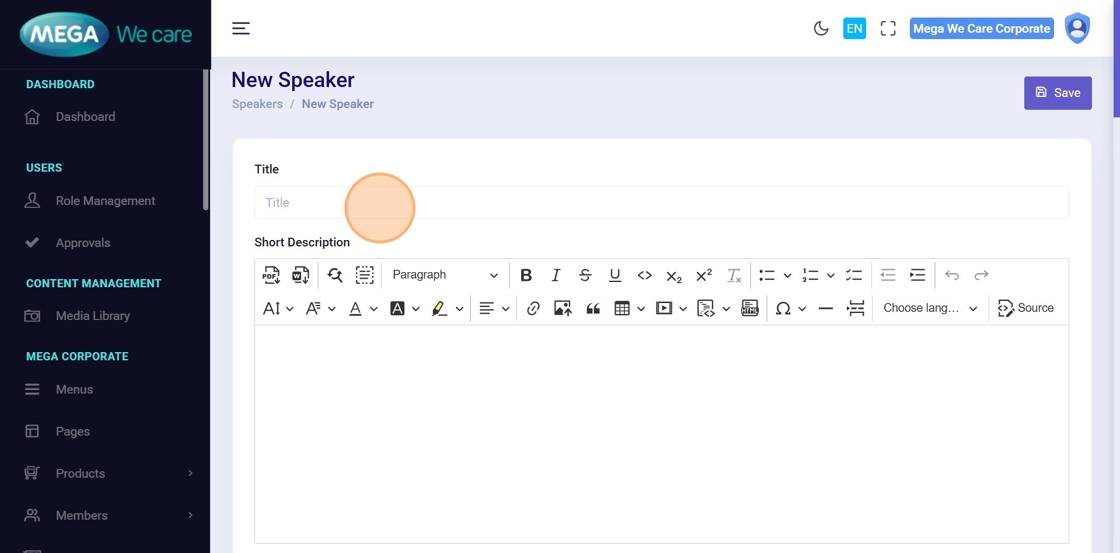
Enter the speaker’s name or professional title in the Title field.
4. Add Short Description
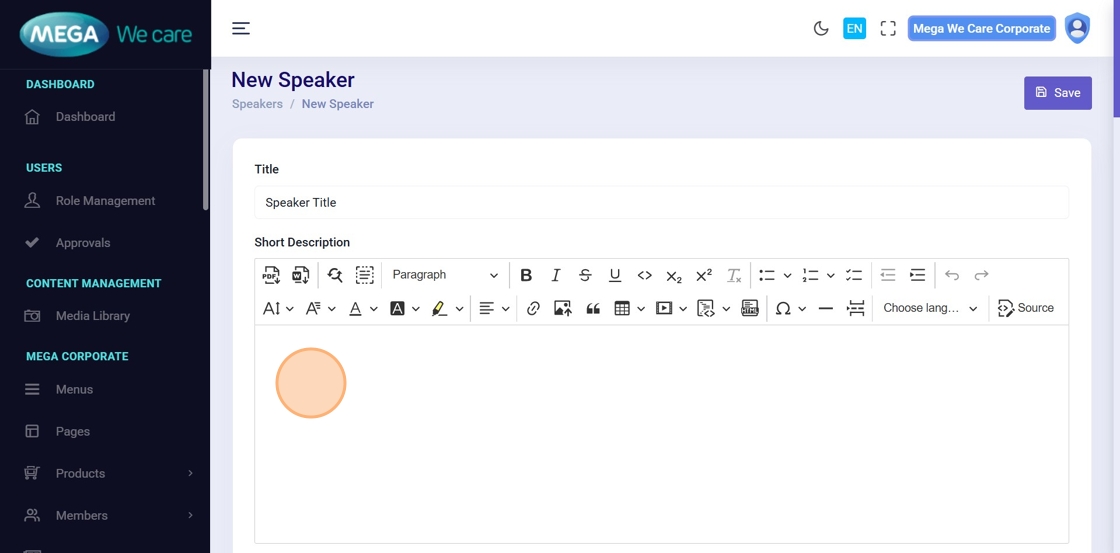
In the Short Description field, enter a brief introduction summarizing the speaker’s role or expertise.
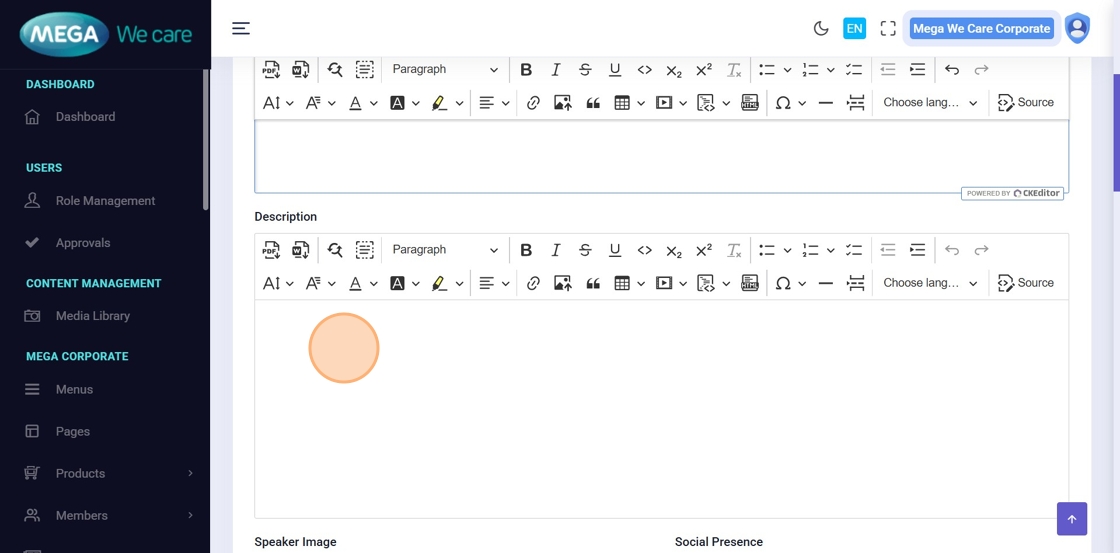
5. Add Detailed Description
In the Description field, enter a detailed speaker profile, including background, experience, and professional achievements.

6. Upload Speaker Image
To upload a speaker image:
- Select an existing image from Select Files, or
- Upload a new image using Upload File
- Click the image to apply it to the profile

7. Add Social Media Links
Click Select Social Icon to add social platforms such as:
- YouTube
Repeat the process to add multiple platforms and enter the corresponding profile URLs.
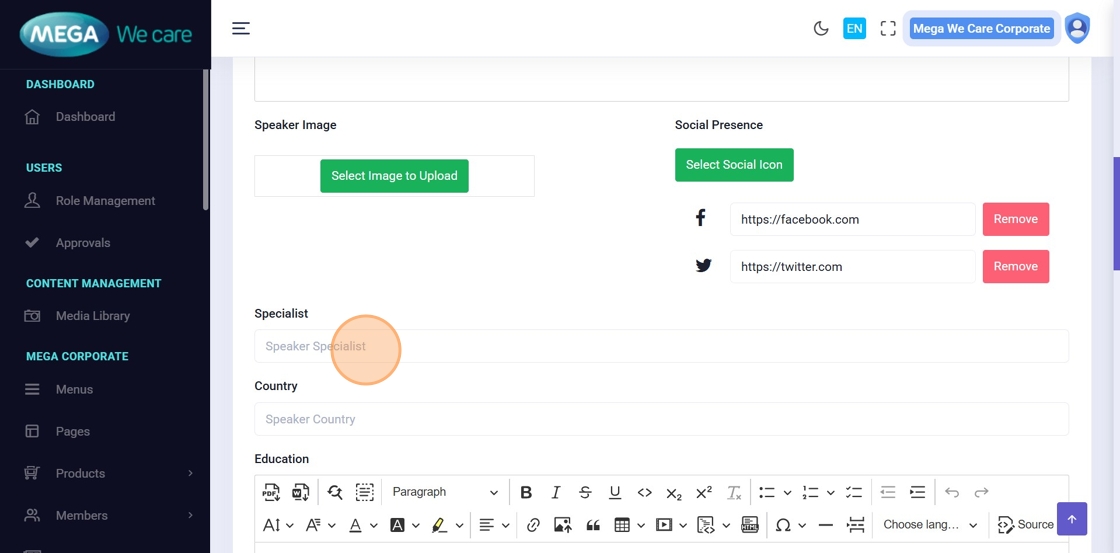
8. Enter Professional Designation
Enter the speaker’s professional designation in the Specialist field (for example, MD, MBBS).
9. Enter Country
Enter the speaker’s country in the Country field.
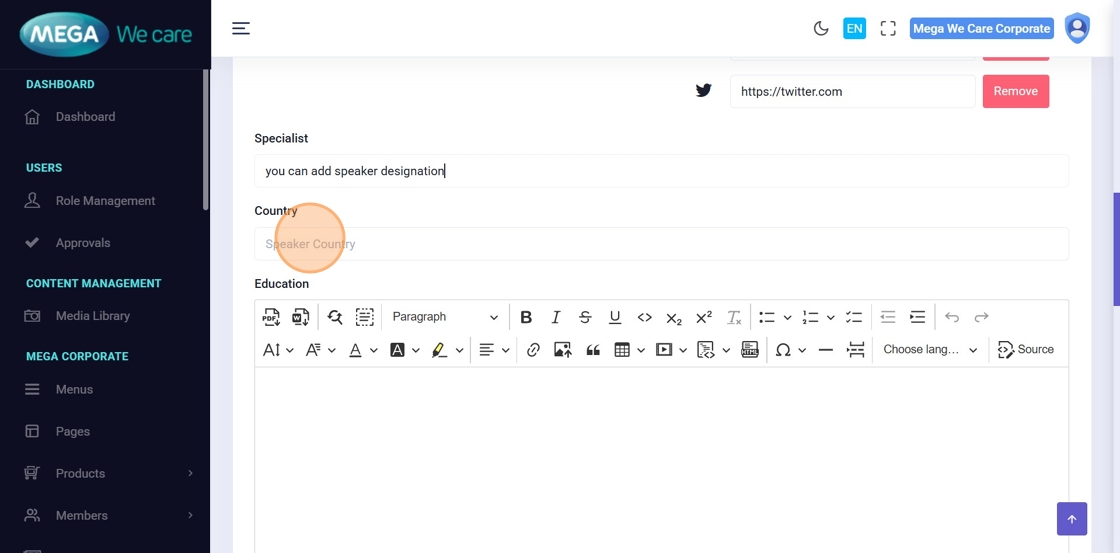
10. Add Education Details
In the Education section, enter the speaker’s academic qualifications.
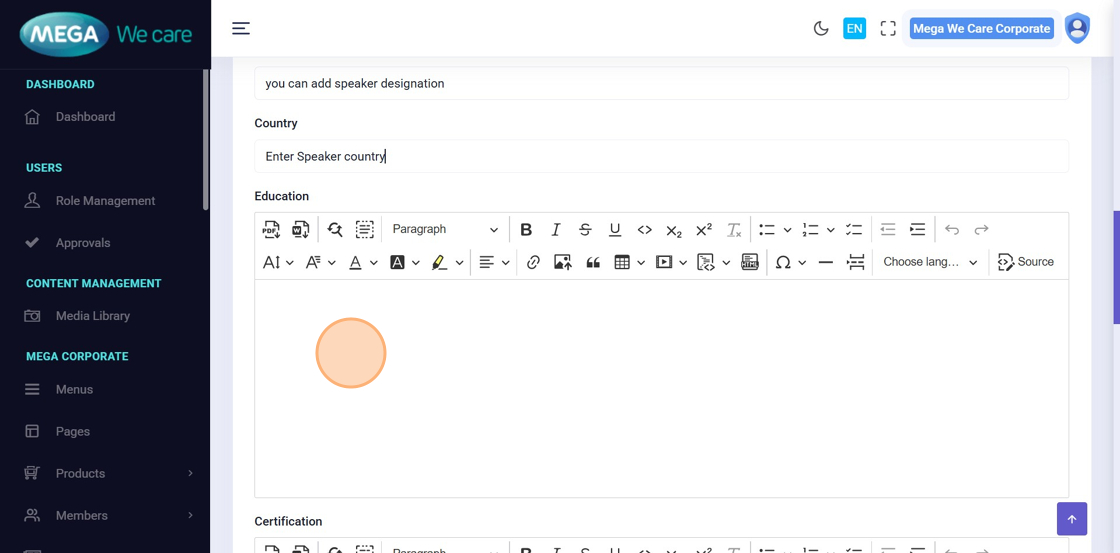
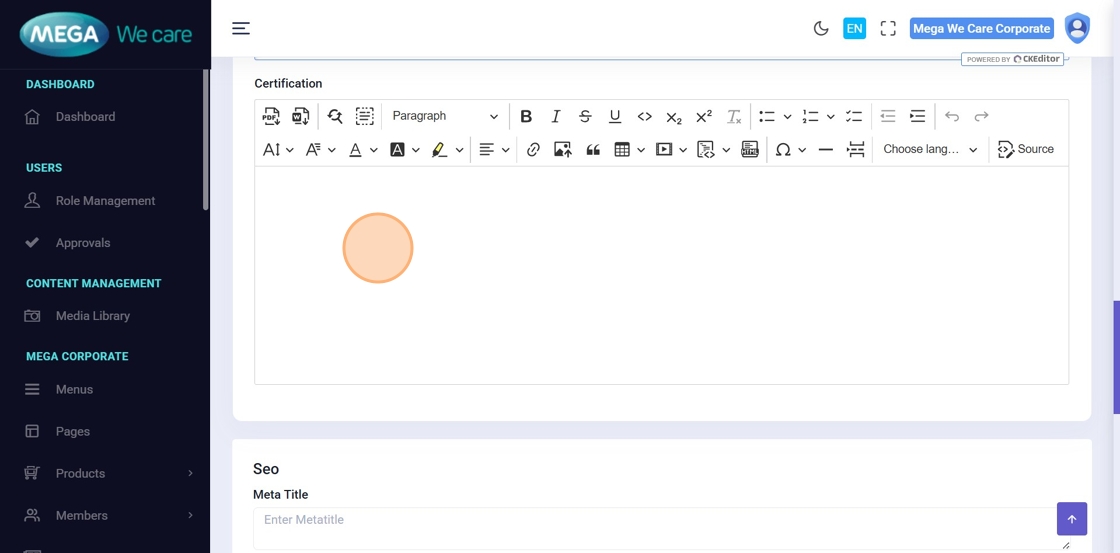
11. Add Certifications
In the Certification section, enter relevant certifications or professional credentials.
SEO Configuration

12. Enter SEO Details
Fill in all required SEO fields, including:
- Meta Title
- Meta Keywords
- Meta Description
- Schema Script
- Meta Image
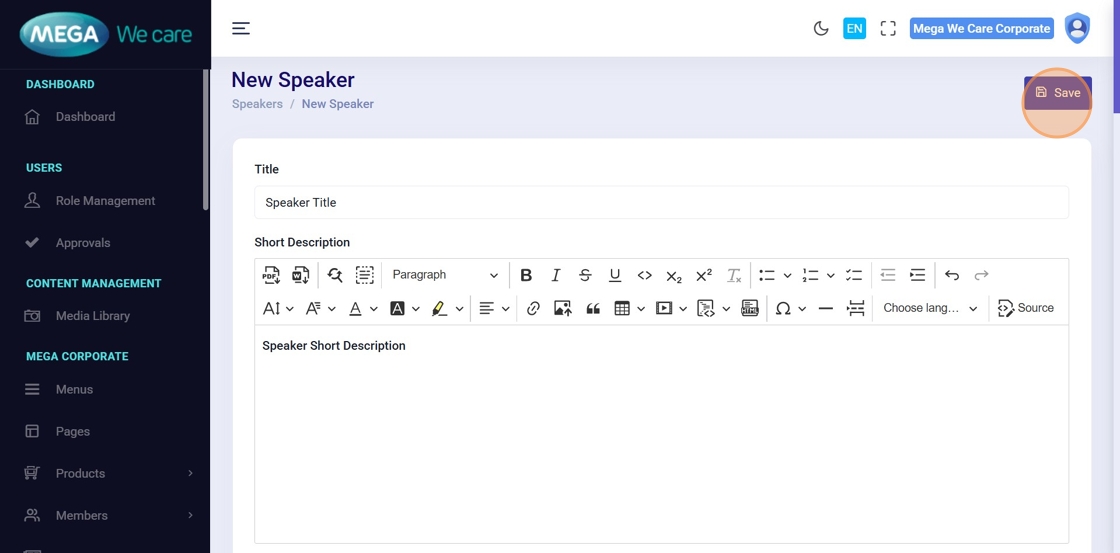
13. Save Speaker Profile
After completing all required fields, click Save to create the HCP speaker profile.
Edit or Delete HCP Speakers
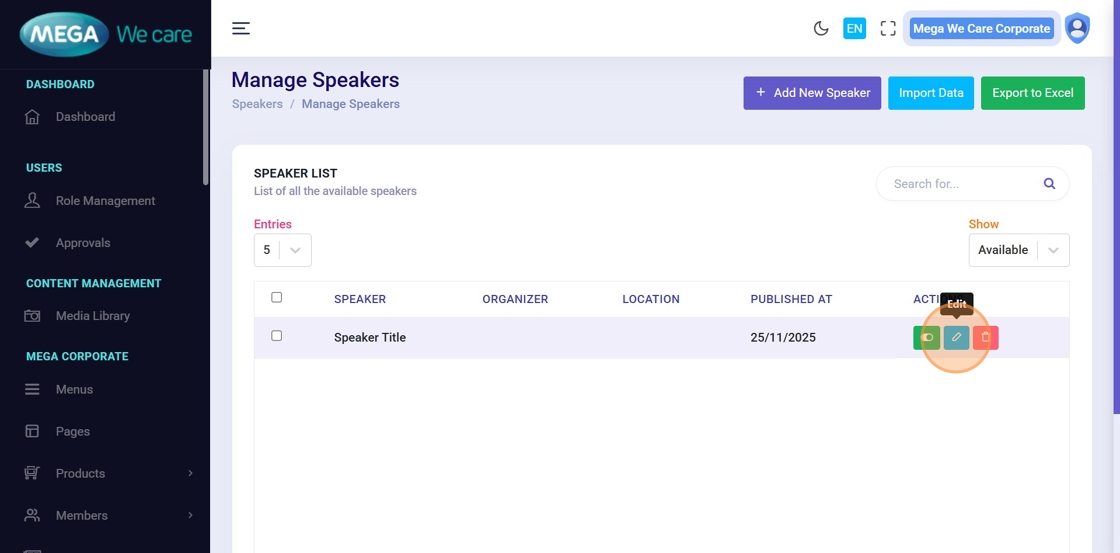
14. Edit Speaker
After creation, click the Edit icon to update or modify speaker details.

15. Update Speaker Details
On the Edit HCP Speaker page, update any required fields (such as country, description, education, or social links), then click Save to apply the changes.
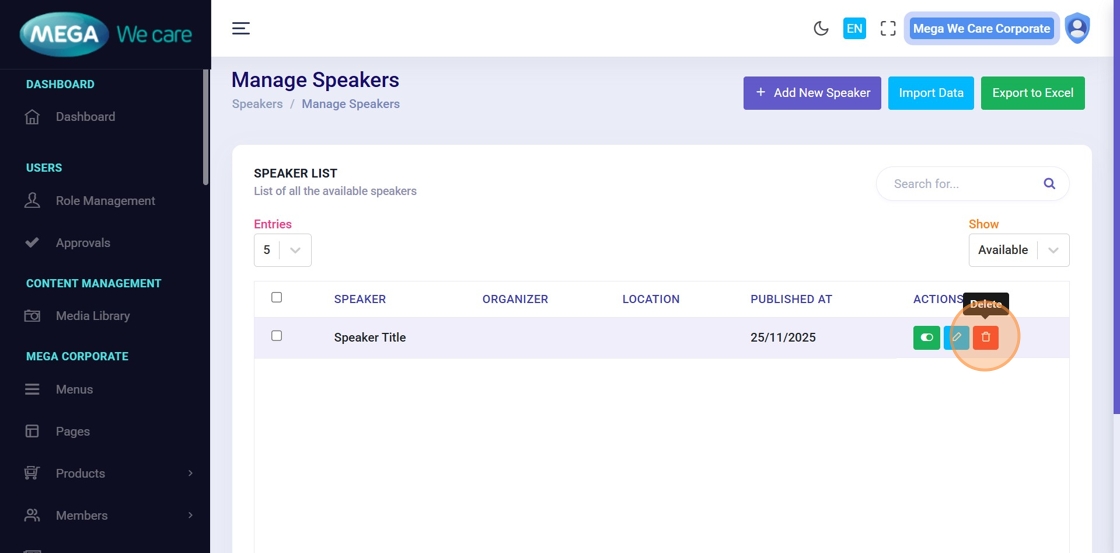
16. Delete Speaker
To remove a speaker, click the Delete icon.
You can delete speakers individually or in bulk using the available selection options.
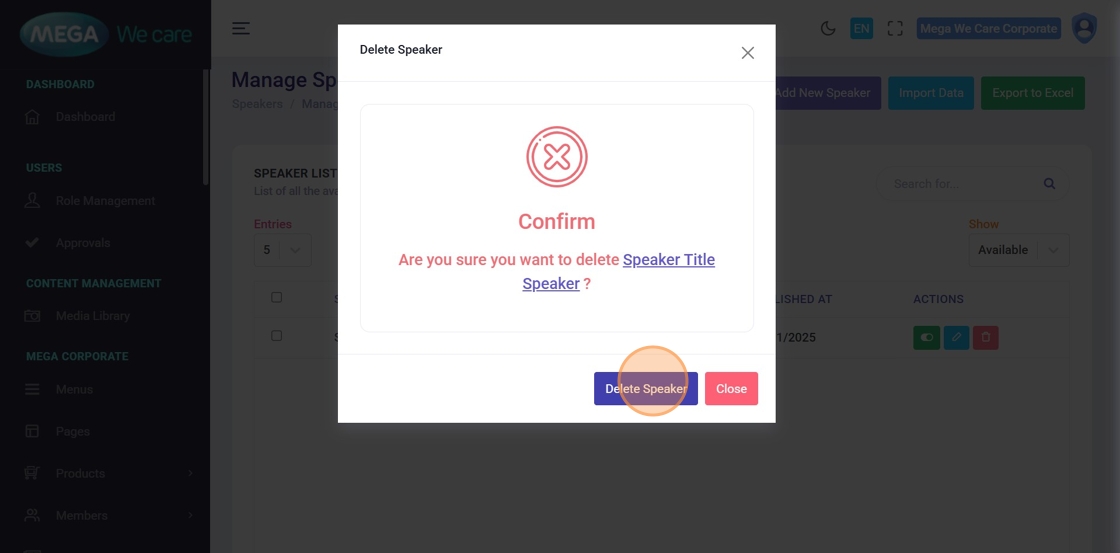
17. Confirm Deletion
In the confirmation popup, click Delete to permanently remove the speaker.
Deleted speaker profiles cannot be restored.
Important Notes
- Upload images in WEBP format, ensure the image size is not too large, and do not use PNG, JPG, or JPEG files. If the image is in any of these formats, convert it to WEBP before uploading.
Summary
By using the HCP Speakers module, administrators can create and manage professional speaker profiles with biographies, images, social links, and SEO details, update information as needed, and permanently remove outdated profiles. This ensures accurate, consistent, and search-optimized representation of HCP speakers across the platform.